How to Use DataAgent
Last updated Apr 8th, 2026
DataAgent acts as a health check for your Salesforce CRM. It analyzes your synced contacts and accounts to surface gaps, inconsistencies, and outdated information. By comparing your Salesforce records against Common Room’s real-time identity data, DataAgent helps you identify exactly where your CRM is "drifting" so you can take action.
Before You Begin
To access DataAgent, ensure the following are configured in your workspace:
- Salesforce Connection: Your Salesforce instance must be connected through Settings > Integrations. A Salesforce admin will need to complete the configuration within your room. You can find more information about our Salesforce integration here.
- Permissions: You must have an Admin role in Common Room to view DataAgent.
How to Access DataAgent
Navigate to the left sidebar and select DataAgent
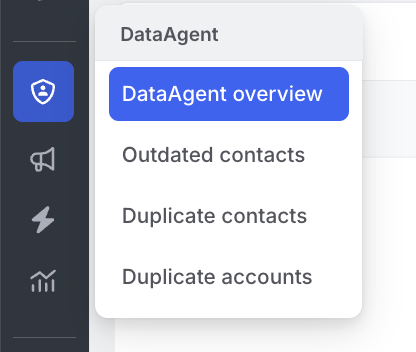
DataAgent Dashboard
The dashboard is organized into health check categories. Each category surfaces a specific type of CRM drift so you can review flagged records and take action. You can also view any activity history to review cleanup jobs ran by DataAgent
Duplicate Contacts
DataAgent identifies Salesforce contacts that appear to be duplicates based on Common Room's real-time identity data. You can review the flagged records and run a cleanup workflow to merge them directly in Salesforce. The merge is performed against your connected Salesforce instance and the result is reflected in the activity log.
Outdated Contacts
DataAgent flags contacts whose information has become stale — such as outdated job titles, emails, or company associations. You can run a cleanup workflow to update these records in Salesforce. Contacts that DataAgent has already acted upon are automatically filtered out of this view so you're always looking at records that still need attention.
Running a Cleanup Workflow
DataAgent lets you run a cleanup workflow that applies its recommended updates directly to your Salesforce records.You can run workflows across multiple contacts simultaneously. Once triggered, workflow progress is visible in the activity log in real time.
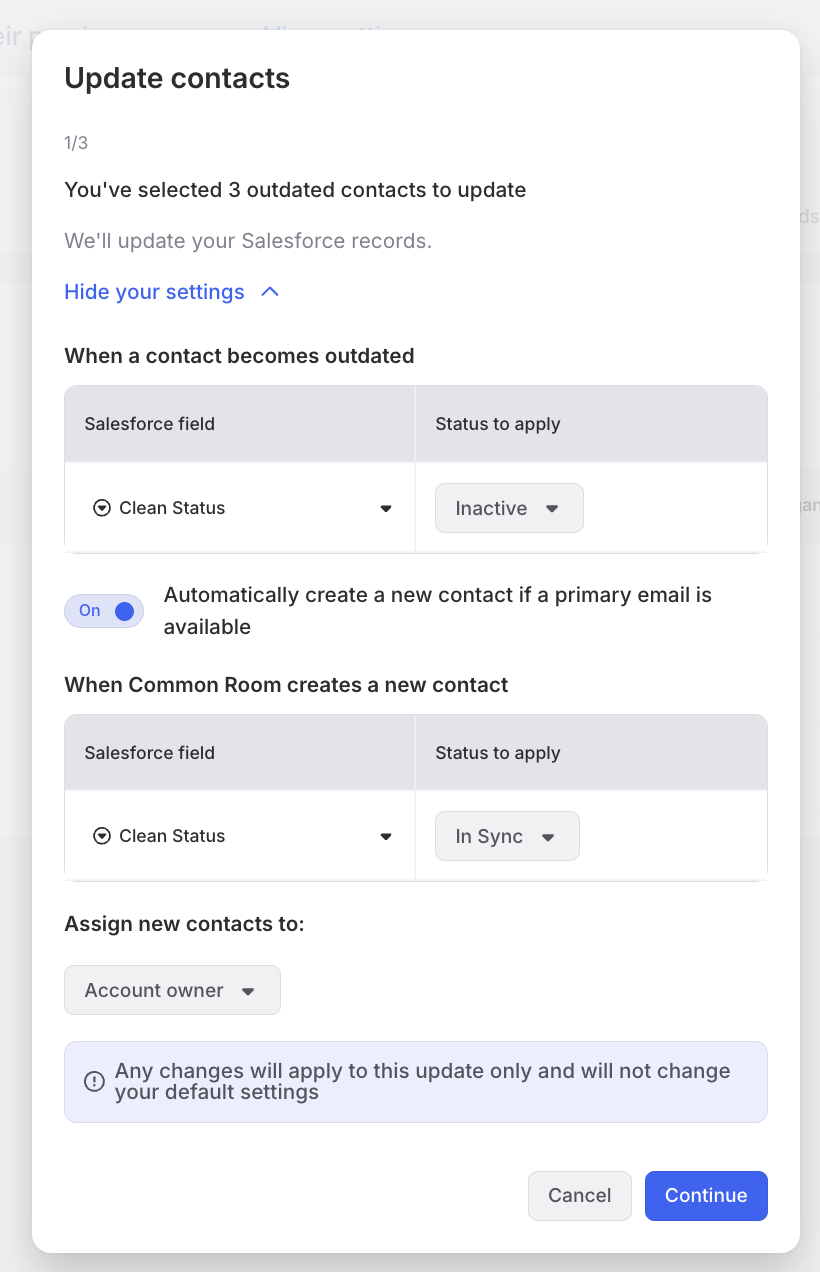
Updating Outdated Contacts
You can bulk select outdated contacts to update, and you’ll be prompted to review the update settings where you can adjust how DataAgent applies those changes to Salesforce.
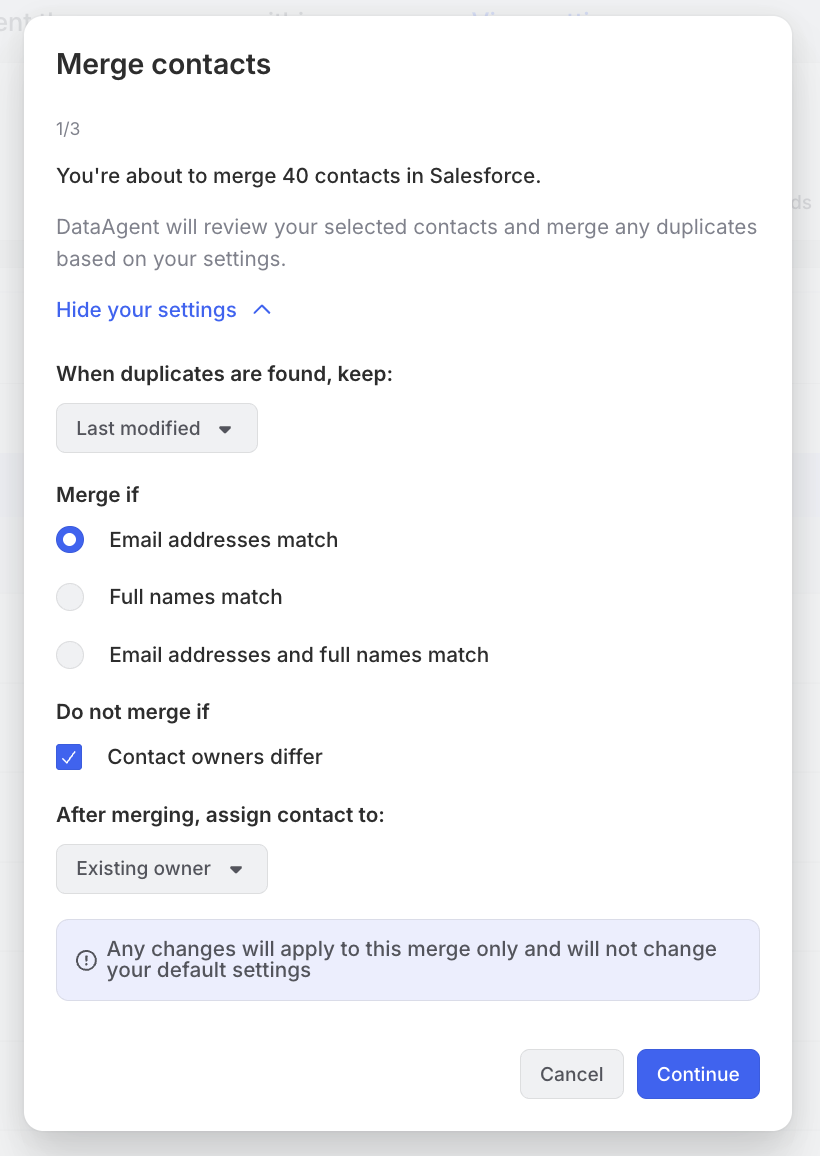
Duplicate Contacts
You can bulk select duplicate contacts to merge, and you’ll be prompted to review the merge settings where you can control how DataAgent applies those changes to Salesforce.
Activity Log
The activity log tracks every action DataAgent has taken on your behalf. Each entry includes the action performed (for example, "Merged 2 contacts into main record") along with a status:
- Succeeded — the action completed successfully
- Failed — the action did not complete; review the log entry for details
If a workflow partially completes (some actions succeed, others fail), the run is marked as Failed so it's easy to spot and investigate.
Exporting Data for Cleanup
Data remediation (fixing the records) must be done within Salesforce. DataAgent identifies the records that need attention through its CSV exports, which you can then use to update the records directly in Salesforce.
To export a report:
- Report exports are only available on the following dashboards:
- Outdated Contacts
- Duplicate Contacts
- Duplicate Accounts
- Click into either one of those dashboards to view the detailed report.
- Review the list of identified contacts or accounts.
- Click the Download report button in the top right.
- Review the report details, then select Download report in the bottom left corner.
- Common Room will process your request and send a CSV file directly to your email.
https://app.arcade.software/share/nrORhAdKvujXLQFf8jwW
Frequently Asked Questions
What is DataAgent?
DataAgent helps you identify and resolve gaps in your Salesforce data to keep records accurate and up to date. It surfaces outdated contacts, duplicate contacts, and duplicate accounts by comparing your Salesforce data with signals from Common Room.
Data Scope & Sources
Is DataAgent looking at all of my Salesforce data?
No, DataAgent only analyzes Salesforce data that has been synced with Common Room. It does not have access to your entire Salesforce database, only the records that have been imported into Common Room through your Salesforce integration.
How often does DataAgent data update?
DataAgent data updates overnight, matching Common Room's standard data sync schedule.
DataAgent is missing from the Reports menu
If you cannot see DataAgent at all, check two things:
- Permissions: Ensure you have Admin-level access.
- Salesforce Connection: Ensure your Salesforce integration is active and hasn't encountered a token error.
What fields are included in the CSV export?
Export fields vary by report type:
- Outdated Contacts: Contact Name, Email, Current company name, SFDC Contact ID, Recommended Account ID
- Duplicate Contacts: Contact Name, Email, CommonRoom Org, Recommended Account ID, SFDC Contact ID
- Duplicate Accounts: Common Room Org Name, SFDC Account Name, SFDC Account ID
Why is the recommended account ID missing in the report export?
This occurs when duplicate accounts exist in your Salesforce instance, which means Common Room cannot confidently determine which account a contact should belong to. To ensure DataAgent can correctly identify the appropriate account, please de-duplicate the affected accounts in Salesforce.
You can learn more about Salesforce account deduplication here.