MCP Server
Last updated Jan 31st, 2026
Overview
Common Room's MCP Server lets you use AI assistants like ChatGPT, Claude, GitHub Copilot, and Cursor to query your Common Room data using natural language. Ask questions about contacts, organizations, activities, segments, and more—directly from your favorite AI tool.
The MCP Server uses the Model Context Protocol to securely connect AI assistants to your Common Room workspace.
Setting Up the MCP Server
You can connect to the Common Room MCP Server from ChatGPT, Claude, GitHub Copilot (VSCode), Cursor, and other MCP-compatible clients. The server URL is the same for all clients:
https://mcp.commonroom.io/mcp/
ChatGPT
Requires ChatGPT Plus or higher.
- Open ChatGPT
- Go to Account → Settings → Apps & Connectors → Advanced settings
- Toggle Developer mode on
- Click < Back, then click Create
- Enter the following:
- Name: Common Room MCP Server
- MCP Server URL: https://mcp.commonroom.io/mcp/
- Authentication: OAuth
- Check "I understand and want to continue" and click Create
- Complete the OAuth sign-in with your Common Room credentials
Claude
Requires Claude Pro or higher.
- Open Claude (web or desktop)
- Go to Settings → Connectors
- Click Add Custom Connector
- Enter the server URL: https://mcp.commonroom.io/mcp/
- Click Save, then Connect
- Complete the OAuth sign-in in your browser
GitHub Copilot (VSCode)
Requires GitHub Copilot.
- Open VS Code
- Go to Settings → Copilot → MCP servers, or use the Command Palette: Copilot: Open MCP configuration
- Add the Common Room MCP server with URL: https://mcp.commonroom.io/mcp/
- Save the configuration
- When prompted, complete the OAuth sign-in in your browser
Cursor
Use the one-click installation link.
- Click the link above
- Confirm the installation in Cursor
- Complete the OAuth sign-in in your browser
Using the MCP Server
Once connected, you can ask your AI assistant questions about your Common Room data in natural language.
Example queries:
- "Find contacts at enterprise companies who visited our pricing page this week"
- "Show me all engineering managers in my 'Product Champions' segment"
- "List contacts from accounts in my 'At Risk' segment"
- "Who from Acme Corp has been active in our Slack community?"
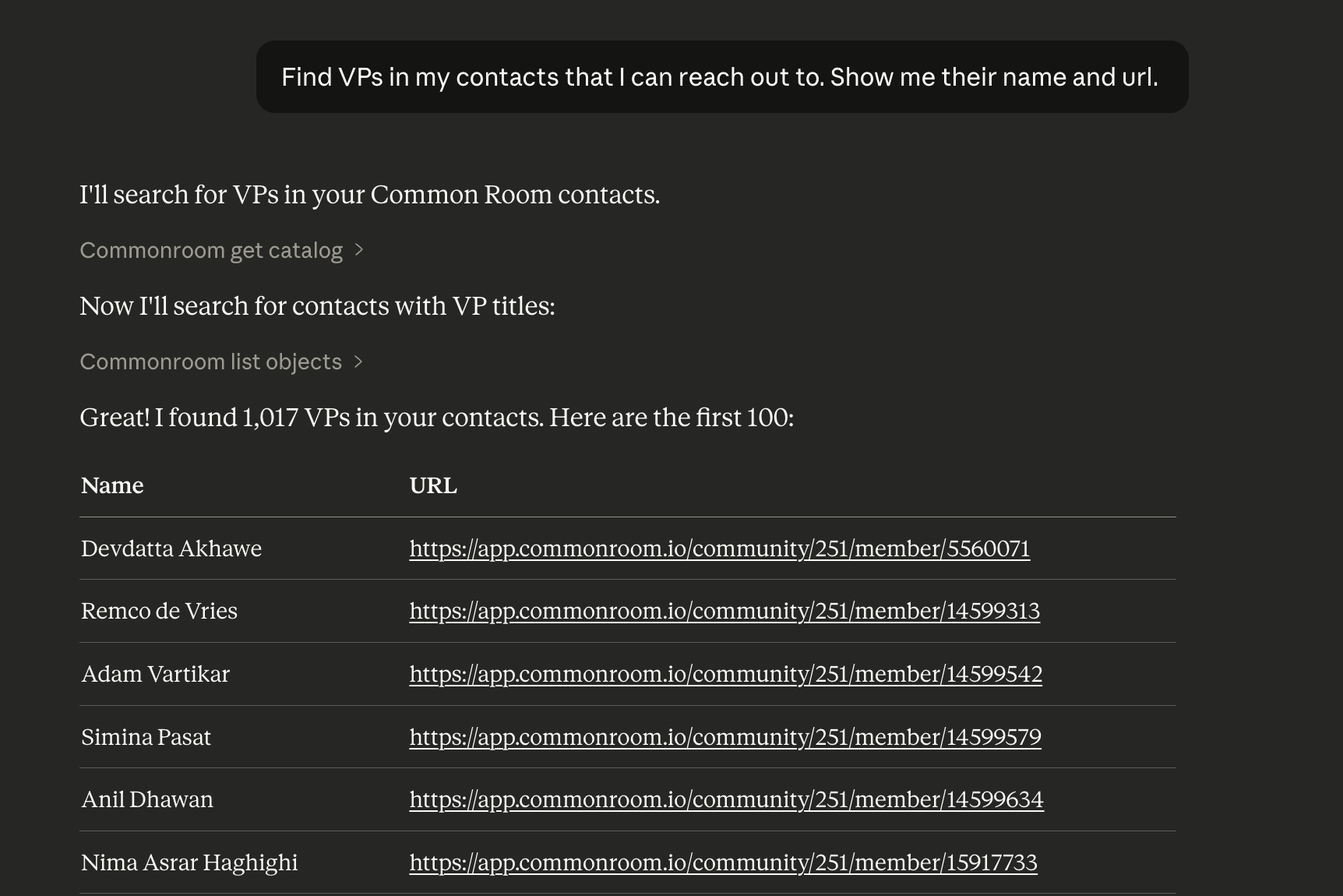
How it works
The MCP Server provides tools that your AI assistant can use to query Common Room data. When you ask a question, the AI assistant interprets it and calls the appropriate MCP tools with structured parameters. The tools query Common Room's API and return data for the AI to present.
Because the tools execute structured queries (not fuzzy searches), you'll get the best results when you reference segments, tags, and fields by their exact names as they appear in Common Room. For example:
- Searching for "Backend Integrators" only works if you have a segment, tag, or field named exactly "Backend Integrators"
- Searching for "high-engagement contacts" requires you to define what "high engagement" means (e.g., "contacts with activity_count > 50")
Tips for effective queries
Use exact names. Reference segments, tags, and fields by their exact names as they appear in Common Room.
Create segments first. Instead of describing complex criteria in your prompt, create a segment in Common Room and reference it by name.
Be specific about metrics. Instead of "high engagement," say "activity_count > 50 in last 30 days."
Break down complex queries. Ask step by step: first find the segment, then filter by activity, then narrow by date range.
Security & Privacy
- Read-only access — The MCP Server cannot modify, delete, or create data in Common Room
- Permission-aware — Users only see data they have access to in Common Room
- Secure authentication — Uses OAuth 2.0, the same security as other enterprise integrations
- Ephemeral queries — The MCP Server does not store query results or session data
Admin Controls
Admins can review OAuth client access for the MCP Server from the OAuth Clients settings page.
FAQs
My query returns no results
The query may be too narrow—try broadening your search criteria. Make sure segment and tag names are exact matches. Use the AI assistant to first list available segments if you're unsure of the exact names.
I'm hitting a rate limit
Wait a few minutes and try again. If you're running automated queries, reduce the frequency.