
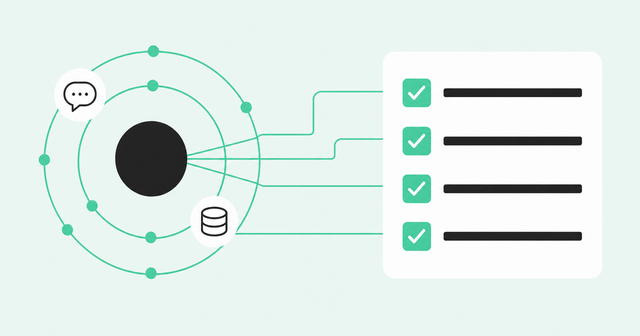
Leadership wants a go-live date. You want to know who owns each field before anything writes to your CRM. Those two goals collide the moment you roll out a GTM intelligence platform.
A GTM intelligence platform pulls buying signals into one place and routes them to the right rep. To do that, it needs Slack and CRM integrations that agree on who owns what. Most stacks weren't built to agree on anything.
MuleSoft, an integration vendor, surveyed 1,050 IT leaders for its MuleSoft 2026 connectivity benchmark. It reported: "On average, only 27% of these applications are currently connected." That's enterprise IT broadly, but your Slack and CRM setup lives in the same reality.
So this guide won't hand you an invented day count. You'll get the rollout in phases, the timing facts vendors actually document, and a printable checklist with owners and dependencies.
How Long Does Slack and CRM Setup Take?
It depends on the phase, and very little of the clock goes to connecting anything. The Slack and CRM connections themselves are mostly point-and-click. The time goes into permissions, field-mapping decisions, and testing.
We couldn't find a vendor that publishes a standard setup time for a Salesforce Slack integration or a GTM platform rollout. Anyone who quotes you a fixed number is guessing about your org. Here's the timing Common Room does document:
- Slack signal import: The first import of Slack data into Common Room "may take up to a few hours."
- Salesforce inbound sync: Inbound sync moves data from Salesforce into Common Room. You can schedule it as often as every 15 minutes or as rarely as once a day.
- Salesforce outbound sync: Outbound sync moves data from Common Room back into Salesforce. It runs daily.
- Large instances: On a large Salesforce instance, a single sync run can take longer than the interval you set.
Everything else depends on your people and your data. This table shows where the effort sits in each phase when you integrate Slack and Salesforce with a GTM intelligence platform.
| Phase | What happens | What drives the timeline | Documented timing |
|---|---|---|---|
Before you start | Name owners, confirm permissions, and pick a source of truth per field | How quickly you get admin access and app approval | None published |
Phase 1: CRM connection and field mapping | Authenticate, map fields, set sync rules, and test one record | CRM data quality and the number of field decisions | Inbound every 15 minutes to daily; outbound daily |
Phase 2: Slack connection and alert routing | Connect Slack as a signal source and set up team alerts | Slack admin availability and approval settings | Signal import may take up to a few hours |
Phase 3: Scoring, segments, and first plays | Build one segment by owner, add a score, and launch one play | How tightly you scope the first workflow | None published |
Phase 4: Rep enablement | Run a pilot, collect feedback, and expand | Rep feedback and alert noise | None published |
Before You Start: Owners, Permissions, and Data Sources
Most rollout delays start here, before anyone clicks Connect. Line up these people and this access before kickoff.
- A Common Room admin who's also a Salesforce admin: Common Room's Salesforce setup needs both roles in one person. If that's not you, invite your Salesforce admin into Common Room.
- A dedicated integration user: This is a Salesforce account that exists only to run the connection. Common Room recommends one instead of a person's own login.
- A Salesforce plan with API access: An API (application programming interface) lets outside tools read and write Salesforce data. Your plan must include it.
- A Slack admin: Common Room's Slack signal integration needs a Slack admin to authorize it.
- Your Slack Workspace Owner, if needed: You'll need this person only if your workspace requires app approval.
Check your Slack app approval settings early. Slack's help center states, "Apps connect third-party services to Slack, and by default, members can install them without approval from a Workspace Owner." If your company turned approval on, requests go to the owner, so loop them in before kickoff.
Next, decide the source of truth for each field. A source of truth is the one system whose value wins when two systems disagree. Our guide to evaluating Salesforce integrations recommends making that call field by field, before the first sync.
Skip this step and you'll learn who owns Lead Status the hard way, in a Slack thread with three AEs.
If You Also Use Native Slack-to-CRM Apps
Salesforce and HubSpot each offer their own Slack apps. Those are separate installs from your GTM intelligence platform, with separate permission rules.
For HubSpot, HubSpot's Slack setup requirements are clear: "You must be a Super Admin or have App Marketplace permissions in your HubSpot account." You also need admin rights in the Slack workspace. HubSpot connects to only one Slack workspace per account.
If a user's HubSpot and Slack emails don't match, HubSpot asks them to confirm the mapping in Slack within 24 hours. That window covers email confirmation only, not installation.
On the Salesforce side, the Salesforce Slack app permissions page covers Sales Cloud for Slack. It says: "Before your users get started with the Sales Cloud for Slack app, you must work with the Slack admin at your company to install the app in your company's Slack Workspace." Connecting that app to your org also requires the Modify All Data and Connect Salesforce with Slack permissions.
Each Salesforce Slack app lists its own permissions, so confirm which one your team runs.
Phase 1: CRM Connection and Field Mapping
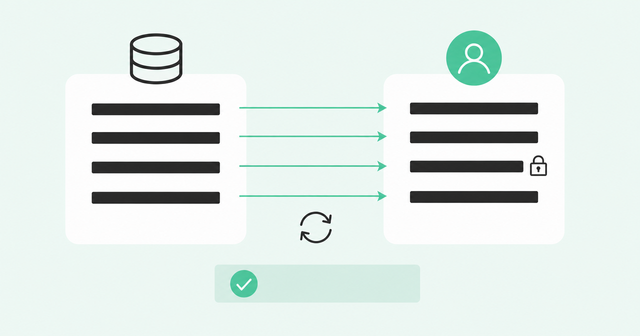
This phase decides whether reps trust the data or quietly ignore it. Field mapping means choosing which field in one system feeds which field in the other. The steps below follow Common Room's Salesforce CRM integration guide.
- Authenticate: Connect Salesforce through your dedicated integration user. Don't use a personal login.
- Map inbound fields: Choose which Salesforce fields flow into Common Room. Prefix each one by source, for example "SF Lead Status," so everyone knows where a value came from.
- Set outbound rules: Decide when Common Room creates new Salesforce records. Then decide when it only updates existing ones.
- Protect rep-entered fields: Keep Allow Overwrite off for any field your reps fill in by hand. Write new context to new fields instead.
- Test one known record: Use Send to Salesforce on a record you know well. Check every mapped field against what you expected.
- Turn on auto-sync: Enable automatic syncing only after the test record looks right. Then set your inbound schedule.
The "new fields" rule does quiet work. Reps keep their own statuses, signal data lands next to them, and nobody finds their work replaced overnight.
Pick your inbound schedule based on how fast reps need to act. Every 15 minutes suits time-sensitive plays, while daily fits reporting fields. On a large instance, test your chosen interval, since one run can outlast it.
The biggest timing variable in this phase is your data. Validity, which sells data-quality tools, ran a self-reported survey of 602 CRM users in the US, UK, and Australia. Its Validity CRM data report found "76% said less than half of their organization's CRM data is accurate and complete."
Messy data won't block the connection. It slows every mapping decision, because you're debating which value is right. Messy CRM data is a common onboarding question we hear from customers.
Phase 2: Slack Connection and Alert Routing
Most guides treat "connect Slack" as one task. For a GTM intelligence platform, it's usually two separate connections with different permissions and different jobs.
The first turns Slack activity into buying signals. The second sends alerts to your own team.
Slack as a Signal Source
This connection reads messages in a Slack workspace where buyers and customers gather, in public channels, plus private channels where you add the app. Their activity then shows up as signals tied to real people and accounts.
A Slack admin has to authorize it, and the workspace needs a paid Slack plan or fewer than 10 installed apps. According to Common Room's Slack signal integration docs, the first data import "may take up to a few hours."
Internal Slack for Team Alerts
Team alerts send signal notifications into your company's own Slack channels. This connection uses limited bot scopes, which are narrow permissions for the app. It doesn't request channels:history, the scope that reads past messages.
That makes for a shorter conversation with your security team. Once it's approved, set up routing:
- Pick channels reps already watch: Send alerts to existing account or territory channels. Don't create a new channel nobody checks.
- Invite the app to private channels: Type /invite @Common Room in any private channel that should receive alerts.
- Start with pre-built alerts: Turn on one pre-built alert first. Adjust filters after you see real volume.
Common Room's guide to setting up team alerts covers conditions, filters, and destination channels.
Phase 3: Scoring, Segments, and First Plays
Here's where the rollout starts to pay off, and where scope creep likes to show up. Pick one workflow gap, close it, and leave the rest for later.
A segment is a saved group of people or accounts that updates as your data changes. Start with team segments by account owner, which map accounts to reps through your CRM ownership field. Then add a score or sort, so each rep sees their most active accounts first.
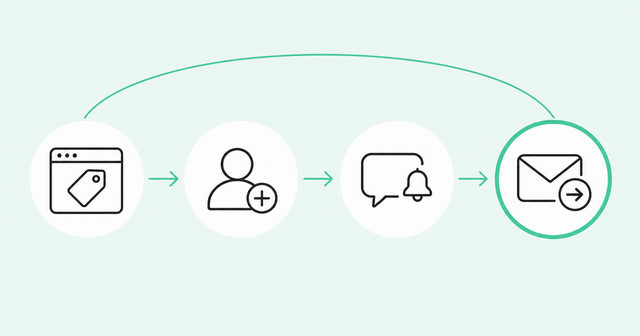
Next, launch one play. A play is a repeatable set of steps that turns a signal into action:
- Signal: A buyer does something that matters, like visiting your pricing page.
- Enrich: Common Room fills in missing contact and company details.
- Route: The account owner gets the alert in a channel they already watch.
- Enroll: The contact enters an outreach sequence.
For a worked example, see our guide to signal-triggered outbound sequences. One play reps trust beats five plays they mute.
Phase 4: Rep Enablement
Adoption is a post-sale question we hear often from customers: How do we get reps to actually use this? Put signals where reps already work, instead of in a new queue they have to remember.
Rep time is already tight. Salesforce's State of Sales press release in its APAC newsroom, Salesforce State of Sales 2026, reported "the average seller spends 40% of their time selling." That figure comes from a self-reported survey of 4,050 sales professionals, fielded August-September 2025.
Every alert competes for that time. Build enablement around it:
- Start with a pilot group: Roll out to a handful of reps who'll give honest feedback.
- Show why this account, why now: Every alert should name the signal behind it, so reps don't have to guess.
- Collect feedback on purpose: Ask the pilot group which alerts they acted on and which they ignored.
- Expand after the pilot works: Add teams once pilot alerts turn into real conversations.
Admin Learning Curve: Week One vs. Month One
How steep is the learning curve for a new admin? It depends more on how well you know your CRM than on the platform itself. We won't put a number on it, because nobody has published a credible one.
If you already own Salesforce field logic, week one will feel familiar. Month one is about judgment, because you're tuning a live system reps rely on.
| Focus | Week one | Month one |
|---|---|---|
Main job | Connect Salesforce and Slack, and confirm permissions | Tune alerts to cut noise |
Data | Map fields and check the first sync | Refine segments and scoring |
Sources | Connect your CRM and Slack | Add more signal sources |
Knowledge | Learn where settings live | Document the setup for your whole team |
That last row is the one teams skip. If only ops understands how the system works, every alert question lands on your desk for good.
Printable GTM Intelligence Platform Rollout Checklist
Assign owners and track progress here. Each task lists what has to happen first.
| Task | Owner | Dependency | Done |
|---|---|---|---|
Name a Common Room admin who's also a Salesforce admin | RevOps lead | None | ☐ |
Create a dedicated Salesforce integration user | Salesforce admin | Salesforce plan with API access | ☐ |
Confirm Slack app approval settings | Slack Workspace Owner | None | ☐ |
Decide the source of truth for each field | RevOps lead | Field list from Salesforce admin | ☐ |
Authenticate Salesforce in Common Room | Salesforce admin | Integration user | ☐ |
Map inbound fields with source prefixes | Salesforce admin | Source-of-truth decisions | ☐ |
Set outbound create and update rules | RevOps lead | Inbound field mapping | ☐ |
Keep Allow Overwrite off for rep-entered fields | Salesforce admin | Outbound rules | ☐ |
Test one known record with Send to Salesforce | Salesforce admin | Field mapping | ☐ |
Turn on auto-sync and set the inbound schedule | Salesforce admin | Passing test record | ☐ |
Connect Slack as a signal source | Slack admin | Paid Slack plan or fewer than 10 installed apps | ☐ |
Connect internal Slack for team alerts | Slack admin | App approval, if required | ☐ |
Invite the app to private alert channels | Channel owners | Internal Slack connection | ☐ |
Turn on one pre-built alert | RevOps lead | Alert channels | ☐ |
Build one team segment by account owner | RevOps lead | Synced CRM ownership field | ☐ |
Launch one play | RevOps lead | Segment and alert | ☐ |
Run a pilot with a small rep group | Sales manager | Live play | ☐ |
Collect feedback and tune alerts | RevOps lead | Pilot results | ☐ |
Document the setup | RevOps lead | Tuned alerts | ☐ |
Expand to more teams | Sales leadership | Pilot feedback | ☐ |
Frequently Asked Questions
Quick answers to the setup questions that come up while you plan a rollout.
How Long Does It Take to Connect Salesforce to a GTM Intelligence Platform?
The connection itself is mostly point-and-click, and field mapping and validation take most of the effort. In Common Room, you can schedule inbound sync as often as every 15 minutes or once a day, and outbound sync runs daily.
Which CRMs Integrate With Slack?
Salesforce and HubSpot both offer native Slack apps. Common Room connects to Salesforce, HubSpot, and Slack.
What Permissions Do I Need to Connect Salesforce and Slack?
You need a Salesforce admin, a Slack admin, and a Common Room admin who's also a Salesforce admin. If your workspace requires app approval, you'll also need your Slack Workspace Owner.
Do I Need a Paid Slack Plan?
For Common Room's Slack signal integration, you need a paid Slack plan or fewer than 10 installed apps in that workspace.
Can I Test in a Salesforce Sandbox First?
Yes, a sandbox is a copy of your Salesforce org built for testing. Authenticate against your sandbox URL and connect it to a separate sandbox Room, so test data stays out of production.
Treat the Rollout as Governance Work
Four phases, one checklist, and very little of it involves clicking Connect. The real work is deciding who owns each field, which channel gets which alert, and which play goes first.
Get those calls right, and your integrations feed person-level buyer intelligence that reps trust. Get them wrong, and you've added one more feed for reps to mute.
Want to see how Common Room fits your Slack and CRM setup? Request a demo.