
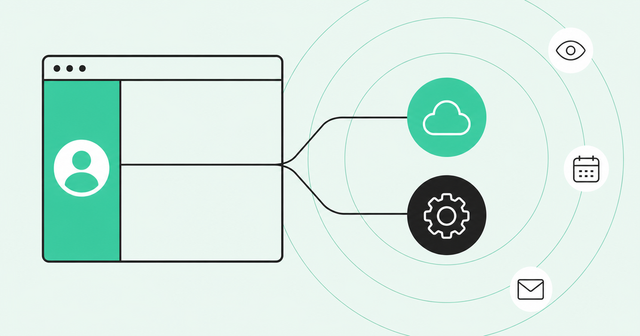
A rep opens a promising account in Salesforce and sees almost no activity. Down the hall, a marketer watches the same company light up in HubSpot, and the rep's browser sidebar shows half the story.
That's daily life in a dual CRM setup, where a company runs two CRM (customer relationship management) systems side by side. It comes up often: "How do we handle dual CRM setups (both Salesforce and HubSpot)?" ranked No. 23 among the top 25 questions we heard from prospects and customers between March and July 2026.
This guide explains how embedded browser extensions handle multiple CRMs at the same company, why companies end up there, and what tends to break. Then it walks through a four-step workflow and a checklist you can use before rollout.
How Do Embedded Browser Extensions Handle Multiple CRMs?
Most embedded browser extensions connect to one CRM account, org, or workspace at a time, and they read and write data through that active connection. Support for multiple CRMs comes from the platform behind the extension, which maps records across systems.
An embedded browser extension is a sidebar that loads inside tools like Salesforce, HubSpot, or LinkedIn. What it shows depends on the active connection and the site the rep is viewing.
Account and Org Switching
An org (short for organization) is one separate instance of a CRM, with its own records, users, and settings. Each vendor gives users its own way to choose which account or org the extension uses.
HubSpot's extension lists the connected account in its settings. Per the HubSpot Sales extension settings, "In the Accounts in use section, you'll see the HubSpot account you're connected to marked as In use." Users can pick a different account from a dropdown menu in that section.
Zoho CRM works at the org level. Zoho's current help documentation says one email address can access multiple org accounts, and admins pick an org when they install a marketplace extension.
Data Routing and Sync Limits
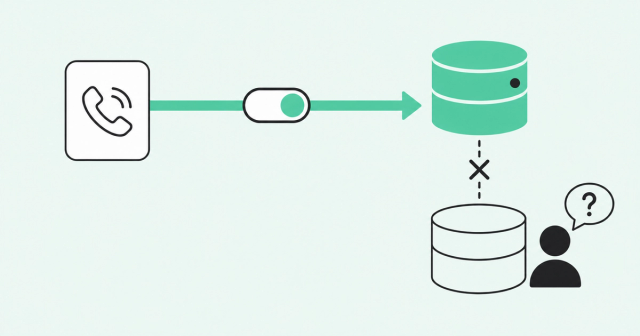
Data routing is the set of rules that decides where a logged call, email, or new record lands. With most extensions, it lands in whichever CRM connection is active at that moment.
That's how records end up in the wrong place. A rep logs a call while connected to HubSpot, switches to Salesforce, and the account owner in Salesforce never sees the call.
Access to several orgs also doesn't mean they share data. The Zoho CRM multi-org FAQ puts it plainly: "No, the multi-org functionality does not allow any kind of data sync between the orgs." CRM data sync, which keeps records matched across systems, needs a separate integration layer.
How the Common Room Chrome Extension Picks a CRM
Our Chrome extension works in Salesforce, HubSpot, and LinkedIn. You choose which room (your Common Room workspace) it uses with the room selector in the extension's settings.
The CRM instance you're viewing has to match the CRM connected to the room in use. Our Common Room Chrome extension docs say "it's important to ensure you're viewing the CRM instance connected to the currently in-use Room for proper function."
The takeaway for sales intelligence across multiple CRMs is simple: Decide which CRM maps to which room before rollout. Then tell reps which room to select for the CRM they work in.
Why Companies End Up With Multiple CRMs
Few companies plan to run two CRMs. It usually happens one reasonable decision at a time.
Salesforce acknowledges the pattern in its own documentation. According to Salesforce multi-org architecture guidance, "As of February 2024, approximately 19,000 Salesforce customers already ran more than one Salesforce org."
Here's how multiple CRMs and multiple Salesforce orgs usually pile up:
- Acquisitions: An acquired company arrives with its own CRM, fields, and habits.
- Business units and regions: Separate teams pick different tools or keep separate orgs for local needs.
- Department splits: Marketing runs campaigns in HubSpot while sales works deals in Salesforce.
Consolidation takes time because every migration touches reports, workflows, and integrations. A Salesforce and HubSpot integration can keep some records in sync, but someone still has to decide which system wins. So plan for multiple CRMs as a long-term setup that needs its own design.
Common Problems When Reps Work Across CRMs
An extension can only show what the CRMs behind it hold. So it inherits every problem those systems already have.
Duplicate Accounts and Contacts
The same company often lives in both systems under different names, owners, and fields. One CRM says "Northwind Inc.," the other says "Northwind Corporation," and neither knows the other exists.
Data quality is shaky before a second CRM even shows up. In Validity's 2025 CRM data report, "76% said less than half of their organization's CRM data is accurate and complete."
Validity, a data-quality software vendor, surveyed 602 CRM users and admins in the US, UK, and Australia. Add a second CRM, and every gap gets a twin.
The fix is identity resolution, which matches records that describe the same person or company. We'll cover it in Step 4.
Split Ownership
Split ownership happens when two reps each think they own the same account. Each CRM has its own routing rules, so the Salesforce owner and the HubSpot owner can both be right on paper.
A buying signal is an action, like a pricing page visit or a job change, that shows someone may be ready to buy. With split ownership, signals go to whoever the active CRM lists as owner.
The result is awkward for everyone. Two reps contact the same buyer, or neither does because each assumes the other has it.
Rep Confusion and Tool Switching
Reps toggle between tabs, accounts, and orgs to piece together one customer. Every switch is a chance to log activity in the wrong place or miss context.
That time adds up. Salesforce State of Sales 2026 reports that "Sales reps spend 60% of their time on non-selling tasks."
Salesforce, which sells CRM software, surveyed more than 4,000 sales professionals for the report. Multiple CRMs add extra steps to almost every account lookup inside that non-selling time.
A 4-Step Workflow for Sales Intelligence Across Multiple CRMs
Sales intelligence is the context reps use to decide who to contact and why, like company details, activity, and buying signals. It only helps when the data behind it is clean.
So the order matters: Do the data work first and the rep-facing rollout last.
Step 1: Map Records Across CRMs
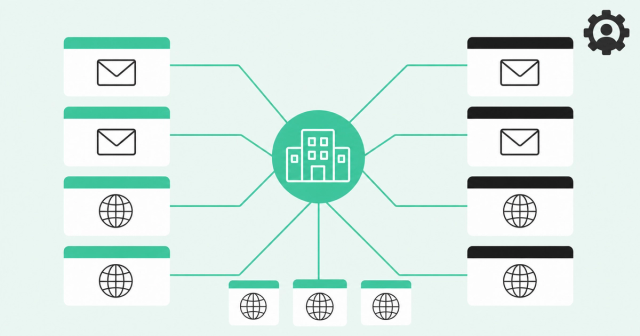
Record mapping tells your systems which records describe the same person or company. Start with simple matching rules everyone on the team can explain.
- Contacts: Match on business email address, since it's the most stable identifier for a person.
- Accounts: Match on company website domain, since company names vary more than domains do.
- Integration users: Create a dedicated integration user in each CRM, so synced changes are easy to trace.
An integration user is a CRM login reserved for a connected tool instead of a person. Our Salesforce CRM integration guide recommends one.
The same guide explains how Common Room matches organizations to Salesforce accounts by domain. That builds a one-to-many account view, meaning one organization can link to several Salesforce account records.
If your second CRM is HubSpot, follow the HubSpot integration setup steps to map contacts, companies, and deals.
Step 2: Set a System of Record per Object
A system of record is the CRM that holds the official version of a record or field. Decide it per object, like leads, contacts, accounts, and opportunities, and then per field where it matters.
When data flows in from both CRMs, two habits help you avoid duplicate and conflicting data. Both come from our guidance for teams running Salesforce and HubSpot.
- Prefix fields by source: Label incoming custom fields with their origin, like "SF Lead Status," so nobody confuses two versions.
- Pick one outbound destination: Send updates to one CRM only, so two systems don't overwrite each other.
Here's an example for a company with marketing in HubSpot and sales in Salesforce. Your split may differ, and that's fine as long as you write it down.
| Object | System of record | Who writes | Who reads |
|---|---|---|---|
Leads | HubSpot | Marketing, through forms and campaigns | Sales development reps |
Contacts | Salesforce | Sales reps and the integration user | Sales, marketing, and RevOps |
Accounts | Salesforce | Account owners and RevOps | Everyone in GTM |
Opportunities | Salesforce | Account executives | Sales leaders, finance, and RevOps |
Marketing campaigns | HubSpot | Marketing | Sales and RevOps |
Step 3: Route Signals to the Right CRM
Signal routing decides which CRM and which owner receive a buying signal. The rule is simple: Signals follow ownership.
- Route to the owner of record: Send each signal to the CRM and rep that own the account in your Step 2 table.
- Send each signal once: Pushing the same signal to both CRMs creates duplicate tasks and double outreach.
- Set a fallback owner: Decide who gets signals for accounts that don't have an owner yet.
How you move data depends on your stack. Most teams connect systems through native connectors, middleware, or APIs, and each option needs the same ownership rules.
Middleware is a tool that sits between systems and passes data along. An API (application programming interface) lets two systems exchange data directly.
Step 4: Give Reps One View in Their Browser
Now for the rep-facing part. The sidebar should show one resolved profile of the person and account, so reps don't need to know which CRM holds what.
That's the job of an identity layer. Person360 identity resolution stitches anonymous and known activity into one deduplicated person-level profile, so reps skip rebuilding records by hand.
Pair it with the room mapping you set earlier, so each rep's extension points at the right CRM. For a rep-level walkthrough, use our playbook to enrich prospects inside Salesforce and HubSpot.
Roll out to one team first. Check where their logged activities land, fix any mapping gaps, and then expand.
Checklist for Evaluating Multiple CRM Support
Every new extension joins a stack that's already crowded. MuleSoft, a Salesforce company that sells integration software, surveyed more than 1,050 IT leaders for its 2025 report.
The MuleSoft 2025 Connectivity Benchmark found that "The average enterprise now manages 897 applications, yet only 29% are integrated." That figure covers all enterprise apps, so treat it as a picture of overall sprawl.
Sellers feel the strain too. Gartner's 2024 seller survey of 1,026 B2B sellers found "50% are overwhelmed by the amount of technology needed. Overwhelmed sellers are 45% less likely to attain quota."
Gartner's "overwhelmed" group includes sellers overwhelmed by job skills, so read the 45% as a broad link. Either way, a new extension should cut down on switching, so test it against that bar.
Use these questions before you buy or deploy an extension at a company with multiple CRMs.
| Question | What a good answer looks like |
|---|---|
Which CRMs and orgs does it support? | A documented list, including multiple Salesforce orgs |
How does org or account selection work? | A visible selector and clear docs on what's active |
Where does logged activity land? | A clear label for the active connection before anything saves |
What are the matching rules? | Email for contacts, domain for accounts, and a one-to-many account view |
What overwrite controls exist? | Field-level control over which system wins |
How do admins govern it? | A dedicated integration user, plus site enablement and exclusion settings |
What happens when the CRM instance doesn't match? | Documented behavior, so reps know when to switch |
Site enablement and exclusion settings control which websites the extension runs on. They keep the sidebar out of places it doesn't belong.
One View of the Buyer, However Many CRMs You Run
Now you know how embedded browser extensions handle multiple CRMs at the same company, and where they need help. The extension follows its active connection, and the platform behind it does the mapping.
More data in more places won't fix split ownership or duplicate records. One trusted, person-level view of each buyer, with clear rules for where data lives, will.
That's the job of Buyer Intelligence at Common Room by Zoom. Want to see how it fits your CRM setup? Request a demo.
Frequently Asked Questions
Can a Browser Extension Switch Between Multiple CRM Organizations Without Logging Out?
It depends on the vendor, but many extensions show an account or org selector in their settings. Check the vendor's docs to see how switching works before you roll it out.
How Does a Browser Extension Decide Which CRM to Log an Activity To?
It uses the active connection, meaning whichever CRM account or org the rep has selected when logging the activity. Set routing rules before rollout so reps don't have to guess.
Can I Sync Data Between Multiple CRMs Using an Extension?
Usually not, because extensions read and write to the active CRM. Syncing data between CRMs needs an integration layer, like a native connector, middleware, or an API.
What's the Difference Between a Native CRM App and a Chrome Extension?
A native CRM app lives inside one CRM's interface and works only there. A Chrome extension follows the rep across sites, like Salesforce, HubSpot, and LinkedIn.
Should We Treat Salesforce or HubSpot as the Source of Truth?
Decide per object instead of picking one CRM for everything. Many teams keep sales objects like accounts and opportunities in Salesforce and marketing objects like campaigns in HubSpot.