
AI-Native Scoring (Beta)
Last updated Sep 24th, 2026
Go from a blank page to a working lead or account score in minutes, with a transparent, editable model built from your own data.
Overview
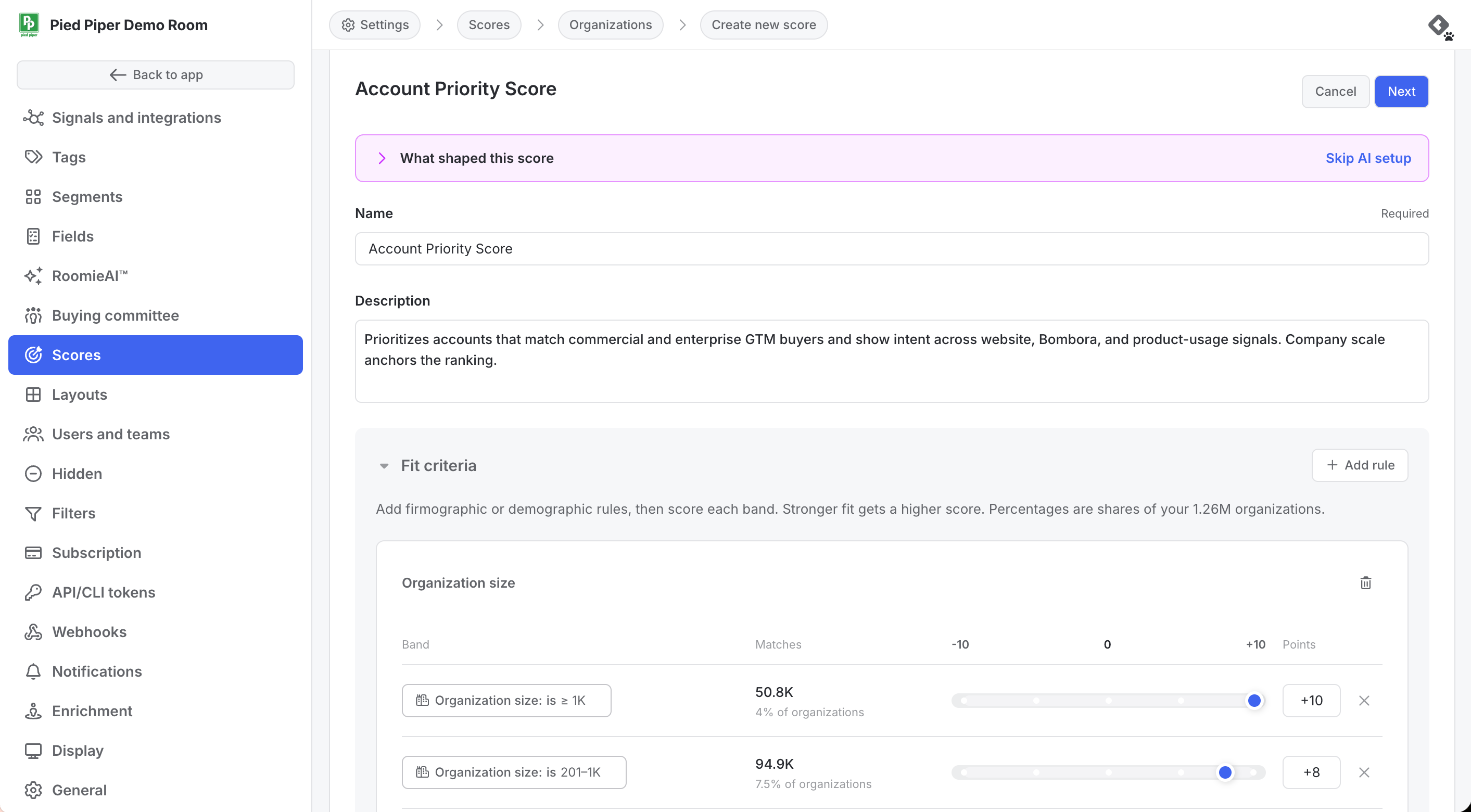
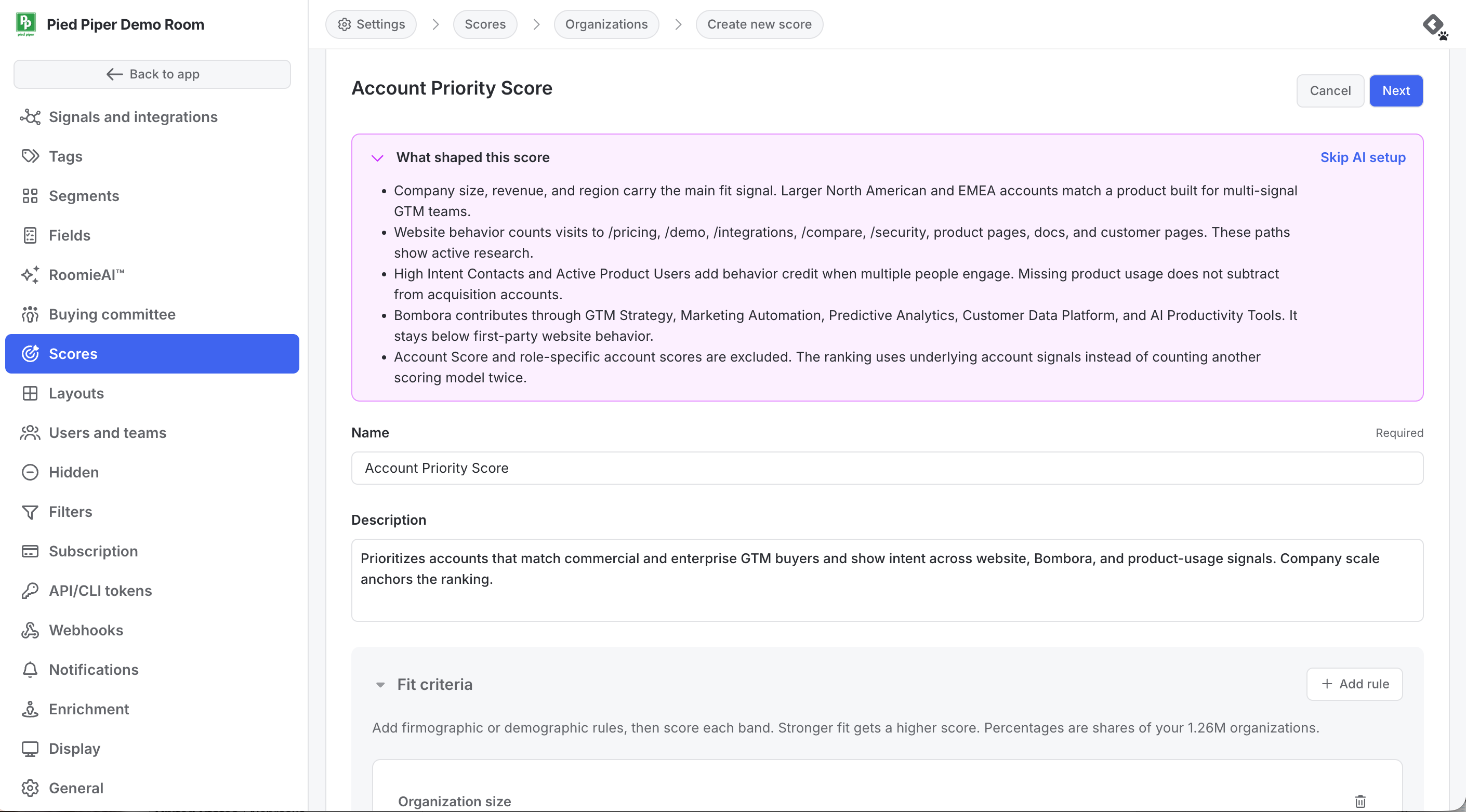
AI-Native Scoring gets you from a blank page to a working lead or account score in minutes. When you create a new score, Common Room's AI analyzes your workspace's own data (closed-won deals from your CRM, the roles and seniorities of contacts on those deals, firmographics, technographics, intent signals, web activity, and your custom fields) and generates a complete starter scoring model: criteria, point values, and weighting.
Every part of the generated score is visible and editable. Treat it as a starting point: you (or your Common Room implementation partner) review the criteria, adjust anything, and decide when to turn the score on. Nothing is scored until you activate it.
Who is this for?
- RevOps or lifecycle marketing teams setting up lead and account scoring
- Sales and marketing leaders defining what a good-fit account or contact looks like
Why this matters
Use AI-Native Scoring to:
- Get a working score in minutes instead of building every criterion from scratch
- Keep full visibility into every criterion, with a summary of what the model was thinking
- Work from your own data. The AI uses your custom field definitions and CRM data to choose the right attributes for your score.
Quick Start
- Go to Settings → Scores.
- Open a pre-populated starter score, or create a new score, to start generation.
- Review the generated criteria, weights, and the plain-language summary.
- Edit criteria, point values, or weights, or add your own.
- Save as a draft, then activate the score when you're ready.
You can also create a score from your AI tools through the Common Room MCP.
Availability
AI-Native Scoring is currently in public beta and will be available on all plans once launched.
Previewing your score
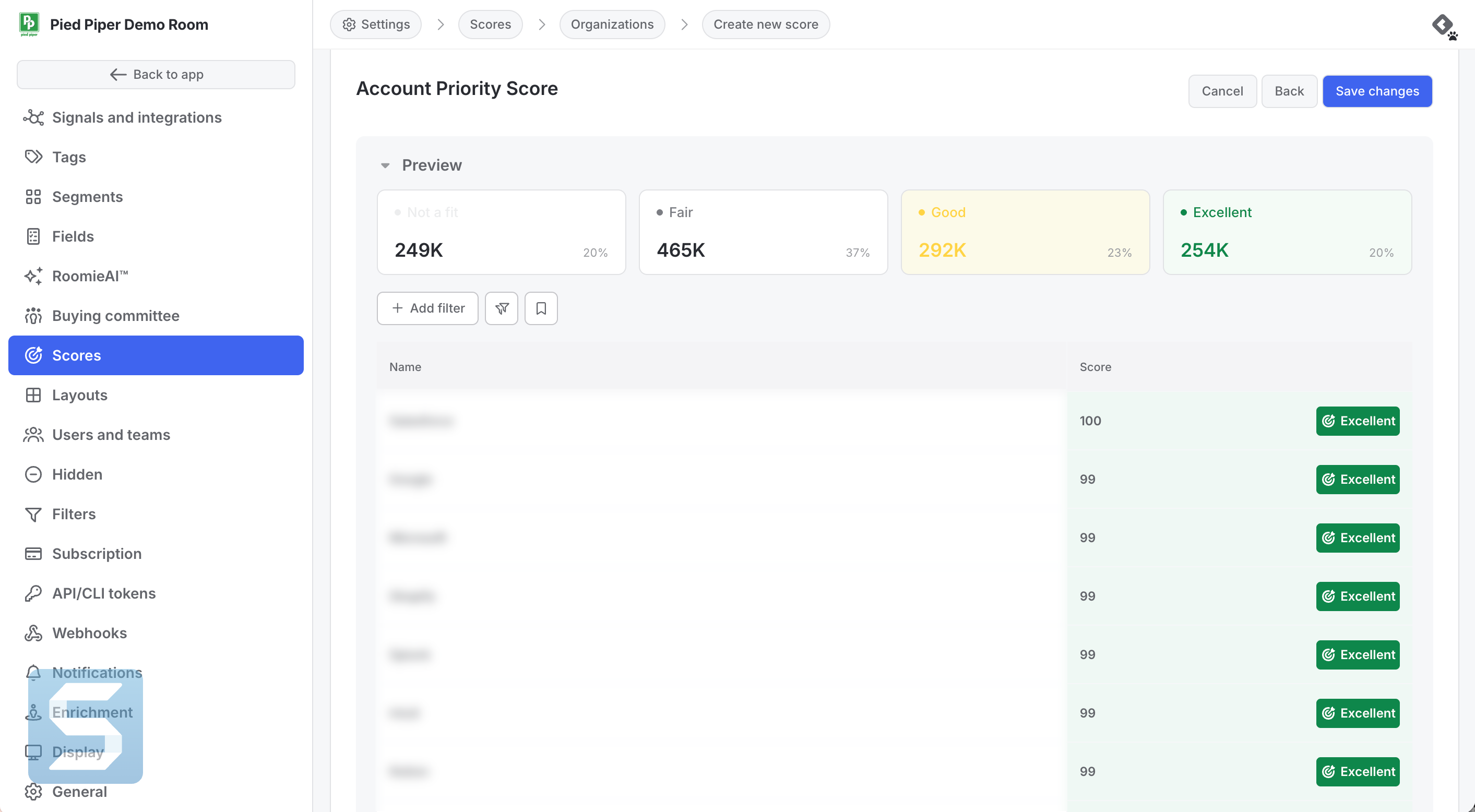
- Preview before going live. Edit criteria and recheck the score distribution and example records without saving or activating the score.
- Distribution view. See how your contacts or accounts spread across score ranges, so you can catch a score where "everyone is 99th percentile" before reps ever see it.
- Per-criterion applicability. While editing, see how many records each criterion applies to.
- Matches per band. For each rule, see how many contacts or accounts fall into each band.
- Spot-check specific records. Scope a preview to a segment, or to a known-good or known-bad record, to confirm the score behaves as intended.
Score output: percentile or point value
Choose how a score is expressed:
- Percentile (default): each record is ranked against the rest of your workspace. For example, a score of 90 is the 90th percentile, or the top 10%.
- Point value: the raw total of points (for example, "12 out of a possible 30"). This is a fixed reading that doesn't shift as your population changes, which is useful for qualification, benchmarking, programmatic use, and downstream workflows that need a stable value.
Note: Output type is chosen when you create the score. To switch between percentile and point value later, create a new score. Changing it in place isn't supported.
Managing scores
- Deleting scores. Delete scores you no longer use. The confirmation lists any segments, views, or workflows that reference the score so you can update them.
- Downstream use. Scores work in filters, segments, and workflows. They sync to Salesforce and HubSpot (including the key factors behind each record's score), and they're included in CSV exports and the API.
For details on how rules, weights, and score labels work, see the Scores Guide.
Best practices
- Treat the generated draft as a starting point. Review it criterion by criterion and iterate before activating.
- Check the distribution view before you turn a score on, not after reps start using it.
- Review the matches per band within each rule to confirm a criterion isn't too broad or too narrow.
Frequently Asked Questions
Is this a machine-learning model that scores my leads automatically?
No. AI-Native Scoring uses a large language model to recommend a transparent, rules-based score built from your own data. The score doesn't learn or adjust on its own over time; it only changes when you edit it. Every criterion is visible and editable, and no score goes live until someone reviews and activates it.
What data does the AI use?
Only your workspace's data: closed-won deal history from your CRM, contact and account attributes, firmographic and technographic enrichment, intent topics, web activity, and your custom fields.
Is anything scored without my approval?
No. Generated scores are saved in a disabled state and don't score anything until you activate them. If you leave without saving, the generated score is discarded.
Can I edit what the AI generates?
Yes. You can add or remove criteria, change point values (-10 to +10), adjust the balance between Fit and Behavior, and change score labels and thresholds.
What if the AI can't build a score?
If there isn't enough data, you'll see a message and can build the score manually. Criteria that can't be mapped to your data are shown as unavailable rather than invented.
Do I need my CRM connected?
A connected CRM (and website visit tracking) makes generated scores much stronger. If they're missing, the draft flags the criteria that would benefit and prompts you to connect the source.
Does this replace my existing scores?
No. Existing scores aren't changed. Generation applies to the pre-populated starter scores and to new scores you create.
How long does generation take?
Typically anywhere from a few moments to a couple of minutes.
Can I create a score through the MCP?
Yes. You can create a score from your AI tools through the Common Room MCP.
Is my data used to train AI models?
No. Common Room doesn't use your data to train AI models.
How much does it cost?
AI-Native Scoring will be included on all plans at launch.