
Buying Committee (Beta)
Last updated Sep 23rd, 2026
Quickly map an account, including key stakeholders and decision-makers from Common Room's prospecting dataset that you might not know about yet.
Why this matters
Use Buying Committee to:
- Find key stakeholders and decision-makers before they engage
- Catch single-threaded deals before they slip
- Multi-thread with real activity data, not guesswork and stale LinkedIn tabs
What is Buying Committee?
B2B deals aren't won by one person. They're won across a group at the account: the economic buyer, the champion, the end users, and the people who can block the deal. That group is the buying committee.
Buying Committee maps that group for you. For any account, Common Room suggests who influences the buying decision and shows where you stand with each of them, based on your connected signals:
- The roles that matter for your product. Common Room identifies the departments, seniority levels, and titles involved in buying what you sell. For example, if Marketing is part of your ICP, Common Room may focus on product marketing and content leaders rather than every Director+ marketer.
- The right people at that account. Common Room suggests the best contacts for each role, whether they're already in your room or come from Common Room's prospecting dataset.
- Where you stand with each of them. Every person is Engaged, Warm, or Not engaged, with their recent touchpoints and activity visible at a glance.
- A way to act without leaving the view. Enrich someone, draft outreach, or add them to a segment or sequence.
Note: Buying Committee isn't an org chart. It doesn't show who reports to whom. It's a department-by-seniority map of the people who influence the buying decision.
Availability
Buying Committee is currently in beta and is included in the base platform across all paying plans. If you're part of the beta, you'll find a Buying committee tab on account and organization pages.
Adding a prospect to your room from Buying Committee uses contact or enrichment credits.
Where to find it
| Surface | What you get |
|---|---|
Account and organization pages | The Buying committee tab, with the full matrix. |
Common Room MCP | Committee data and engagement status available to your agents and AI tools. |
Getting started
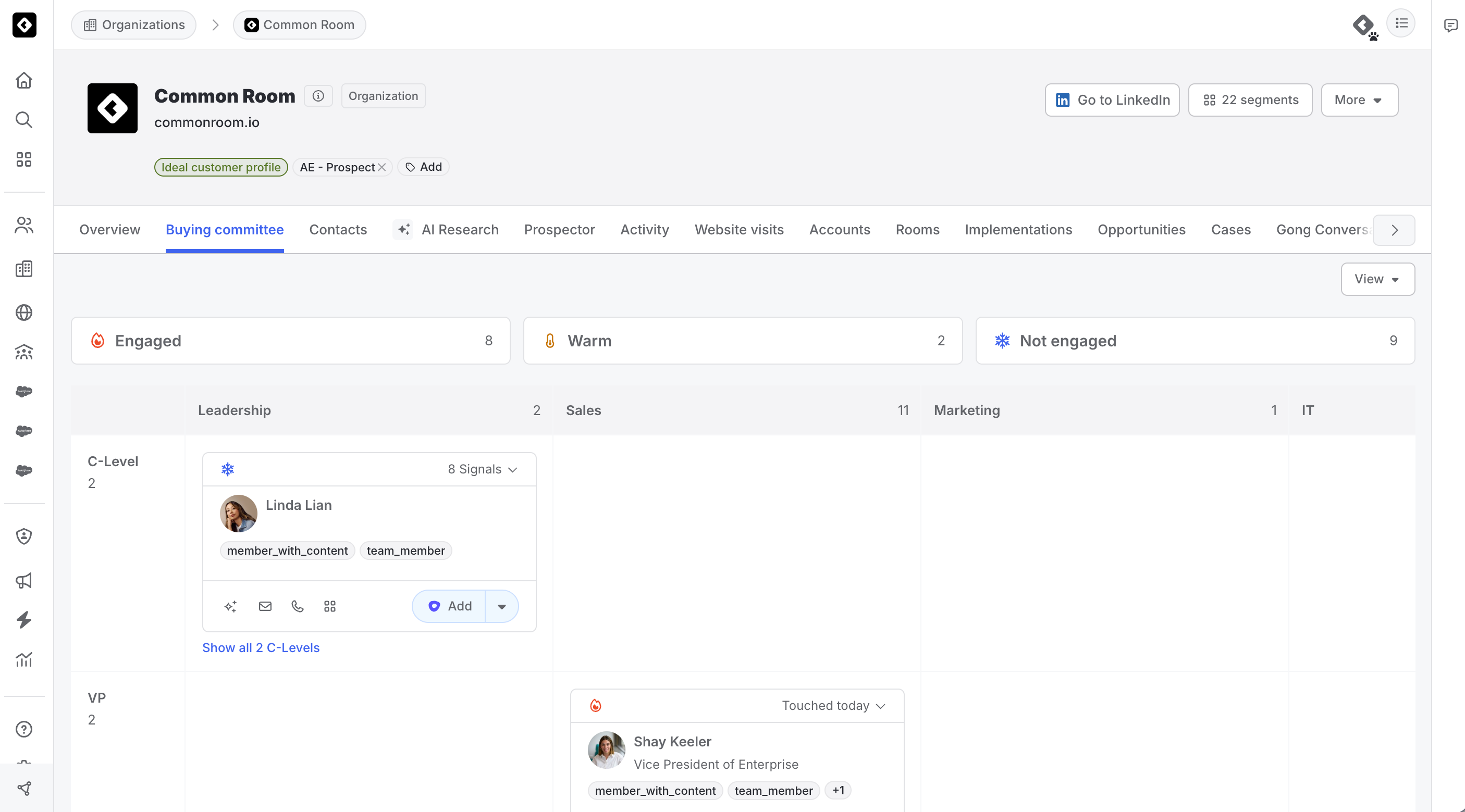
- Open an account or organization page.
- Select the Buying committee tab.
- Review the matrix. Look for new activity from key personas, and for prospects your team has yet to engage.
- Take action on a contact: enrich, draft outreach, or add them to a segment or sequence.
Reading the matrix
The matrix is organized as departments across the top and seniority levels down the side. Each cell holds the people at that account who fit that department and seniority, with the most relevant first.
- Columns are the departments involved in buying your product, and rows are the seniority levels. Your admin controls which departments and seniority levels appear, starting from Common Room's suggestions.
- The number beside each department and seniority label is the total number of contacts found for that column or row.
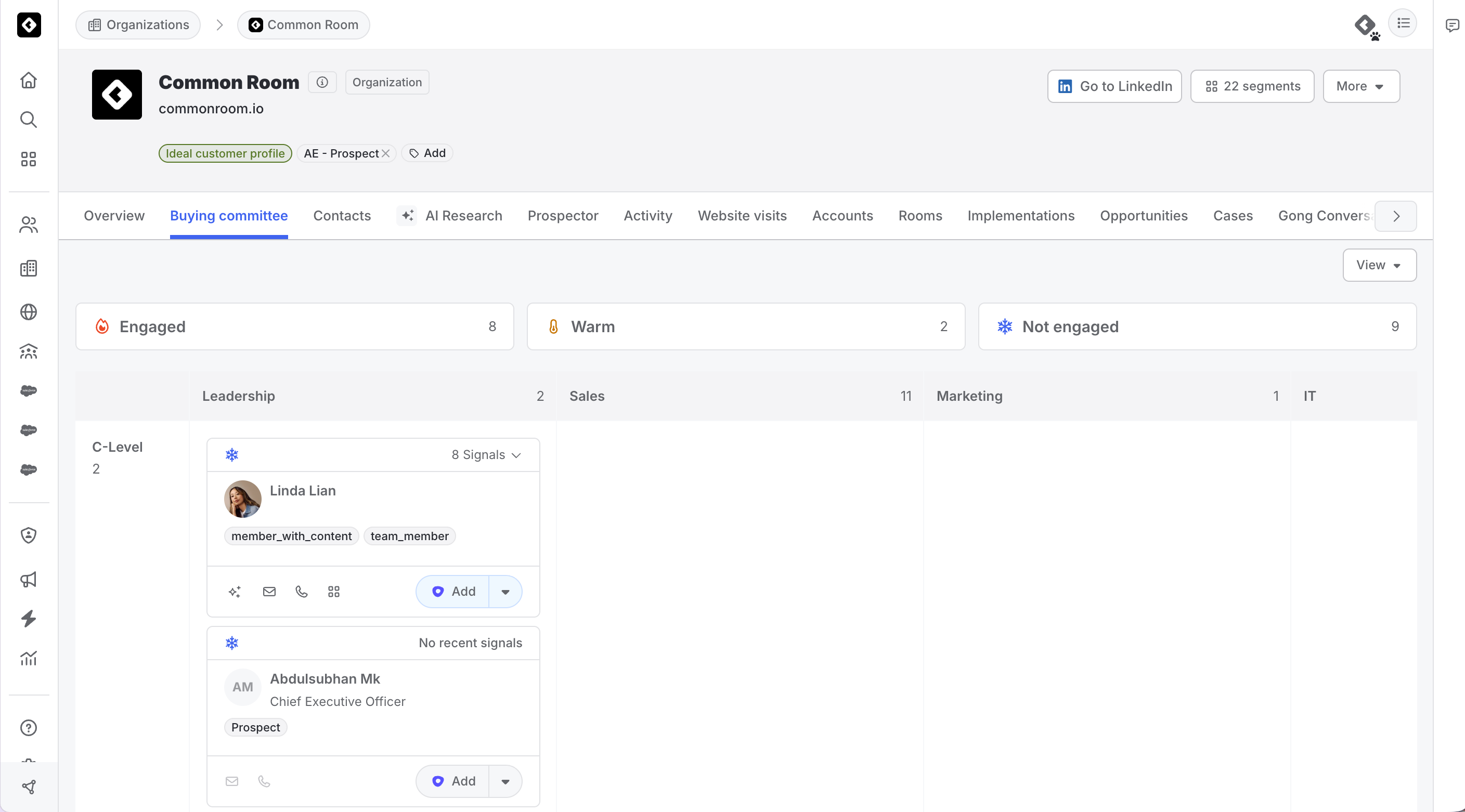
- A cell shows its top contact by default. Select Show all to see more contacts.
Note: Common Room shows fewer, higher-quality suggestions rather than everyone at the account. People below the quality bar aren't shown.
Engagement filters
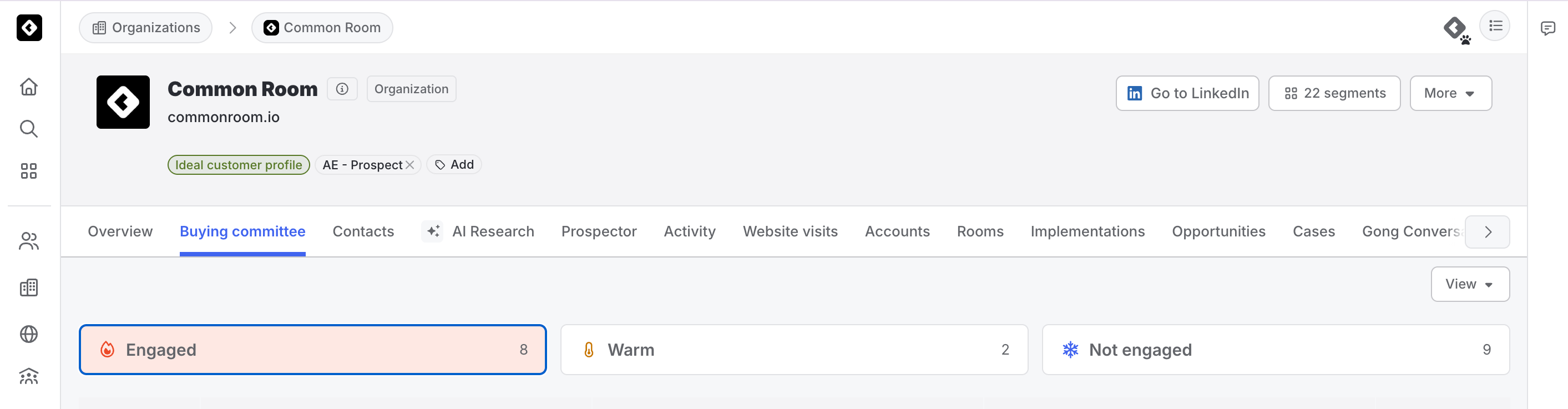
Above the matrix, Engaged, Warm, and Not engaged show how many committee contacts are in each status. Select one to highlight just those people in the matrix, and select it again to clear.
Engagement status
Every contact has a status based on their recent activity:
| Status | What it means |
|---|---|
Engaged | Someone who has directly engaged with your team in the last 30 days, as configured in your committee settings. |
Warm | Someone in your room with activity in the last 30 days that doesn't meet the bar for Engaged. |
Not engaged | A committee member with no qualifying recent activity. This can be a prospect Common Room identified who isn't in your room yet, or a contact already in your room whose activity is older than the lookback window. |
The default lookback window is 30 days. For Engaged and Warm contacts, the signals behind their status are shown on their card.
Tip: Buying Committee treats direct engagement with your team as the bar for Engaged. Admins can control which activity types count toward each status in committee settings.
Why is this person here?
Hover over a contact to see their recent activity and signals. Common Room doesn't show confidence scores. Instead, suggestions below the quality bar aren't shown, so what you see is what Common Room stands behind.
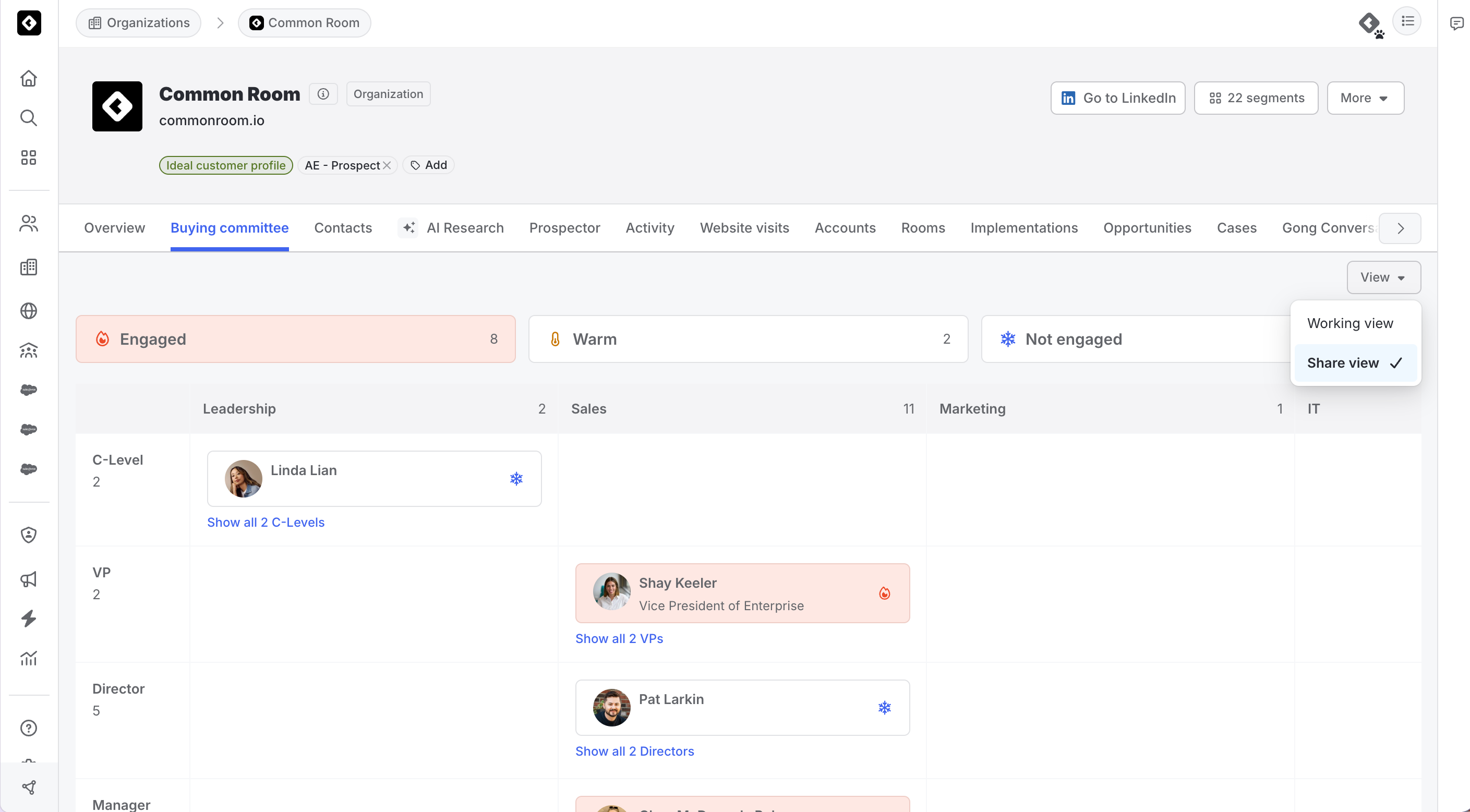
Working view vs. Share view
Use the View menu to switch between two layouts of the same data.
Working view (default) is built for doing the work. Each card shows name, title, photo, engagement status and recent activity, whether an email and phone number are available, labels, and the action control.
Share view is a simplified layout built for sharing with external partners. It shows name, title, and status only, with no contact details or internal actions. It works well for customer screenshares, and you can take a screenshot to include in an account plan or pipeline review.
Taking action on a contact
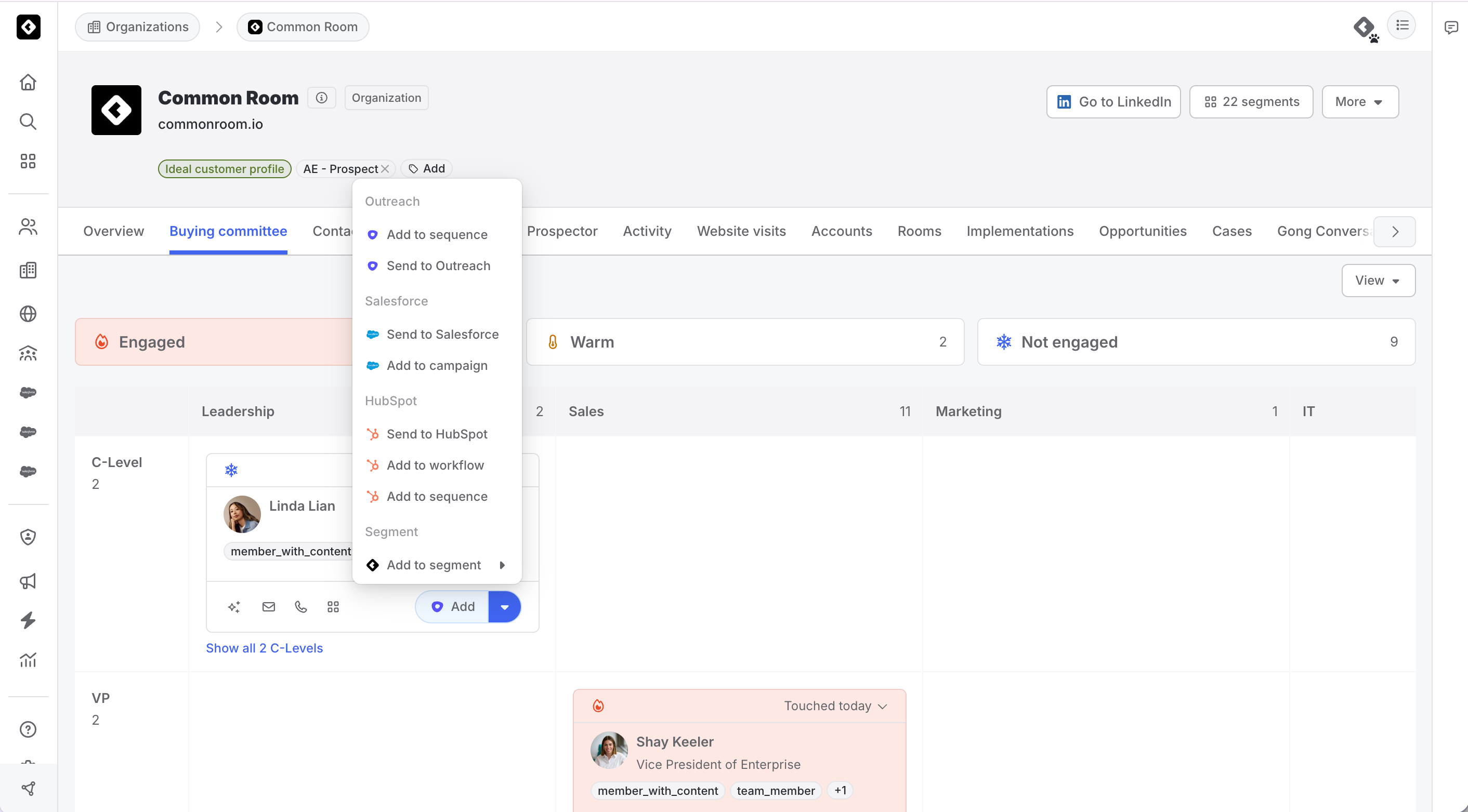
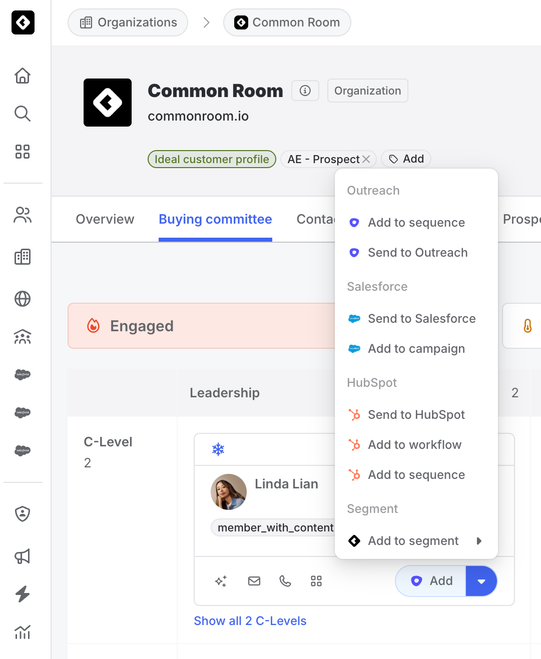
Committee members use the same add control as explorer views:
- Enrich a prospect to look for their contact details and add them to your room. Enrichment doesn't guarantee a verified email, and phone numbers are available through premium enrichment.
- Draft outreach using the account and contact context Common Room already has.
- Add to a segment to work them alongside other accounts.
- Add to a sequence to start outreach.
- Hide a contact who doesn't belong to remove them from the view.
One committee per account
The committee is a single shared view on the account, not a per-rep view. The account owner, the SDR, and the manager all see the same committee.
How Common Room builds your committee
- Common Room researches your company and forms a view of what you sell and who buys it.
- From that, it proposes the departments, seniority levels, and titles that make up a buying committee for your product.
- That model is applied to every account. Regardless of who's already in your room, Common Room suggests the best contacts for each role, drawing on your existing contacts, enrichment, connected activity, call and email participants, and Common Room's prospecting dataset.
- Each person's engagement status is determined from their connected activity data.
Note: Admins can change which departments and seniority levels make up the rows and columns, starting from Common Room's suggestions. Today, the same structure applies to every account in your room.
Works best with connected signals
Buying Committee works best with connected signals, and it improves as you connect more of them:
- CRM
- Other connected signal sources, such as your sequencer
Accounts with little signal get a smaller committee made up only of people above the quality bar.
Coming soon
Coverage reporting in Salesforce. Buying Committee data will be available in Salesforce, so you can report on multi-threading coverage in your own environment without opening Common Room.
Common issues
I don't see the Buying committee tab. Buying Committee is in beta. Contact your Common Room representative to ask about access.
The Buying committee tab is empty. Connect your CRM. Without a CRM connection, the tab shows a prompt to connect one.
Someone shows as Warm or Not engaged, but I know we've talked to them. Common Room can only see activity from sources you've connected. Check that your CRM or sequencer is connected and syncing, and that the relevant activity types are included in your committee settings.
FAQs
Where do the people in the matrix come from?
Common Room suggests the best contacts for each role, whether they're already in your room (from your connected sources and CRM) or are prospects from Common Room's prospecting dataset. Only prospects use a credit, and only when you add them.
Why is a cell empty?
Either Common Room doesn't have anyone in its database who matches that department and seniority at the account, or that combination isn't typically important for your buyers. For example, committees often don't include C-level contacts in every department, since it's rare for that many executives to be involved in a purchase decision.
Does "Not engaged" mean we've never talked to them?
Not necessarily. Not engaged means Common Room hasn't seen qualifying activity within the lookback window. That includes prospects who aren't in your room yet and contacts whose last activity is older than the window. If you've talked to someone recently and they show as Not engaged, check that the source of that activity is connected.
Does the committee structure differ per account?
Not today. The structure (which departments and seniority levels appear) is the same across your accounts, because it's driven by what you sell. The people in it are specific to each account.
Does engagement include CRM and sequencer activity?
Yes. Status is based on the activity types that define each status within the lookback window, regardless of which connected source the activity came from. Without a CRM or sequencer connection, Common Room can only see activity from the sources you have connected.
How fresh is it?
Engagement updates as activity flows into Common Room. There can be a short lag between an activity happening and the status changing.
Can I export it?
Use Share view to take a screenshot for an account plan or review. Committee data is also available through the Common Room MCP, and Salesforce reporting is coming soon.
Does adding someone cost a credit?
Adding a prospect who isn't in your room does, the same as anywhere else in Common Room. Taking action on someone already in your room doesn't.