Deleting Contacts
Last updated Jul 13th, 2026
Overview
You can permanently remove contacts from your Common Room workspace when they are no longer needed — for example, to clean up test data, maintain data quality, or comply with data retention policies.
Contact deletion is a two-stage process designed to protect against accidental data loss:
- Scheduled for deletion — Contacts are hidden from all views across Common Room within a few hours of initiating the deletion.
- Permanently deleted — After an additional delay, contacts and all associated data are irreversibly removed from the system.
This staged approach provides a recovery window during which a workspace admin can restore contacts before permanent deletion occurs.
Who This Applies To
| Role | Capability |
|---|---|
Workspace Admin (with delete contacts permission) | Can delete contacts individually, in bulk, or via automation; can restore contacts during the deletion window |
All other users | Cannot delete contacts |
Before You Begin
- Confirm you have workspace admin access with the delete contacts permission.
- Review which contacts you intend to delete — deletions affect all associated data (see What Is Removed).
- Consider whether any automations or CRM syncs may re-create deleted contacts (see Contacts and Data Syncs).
How to Delete Contacts
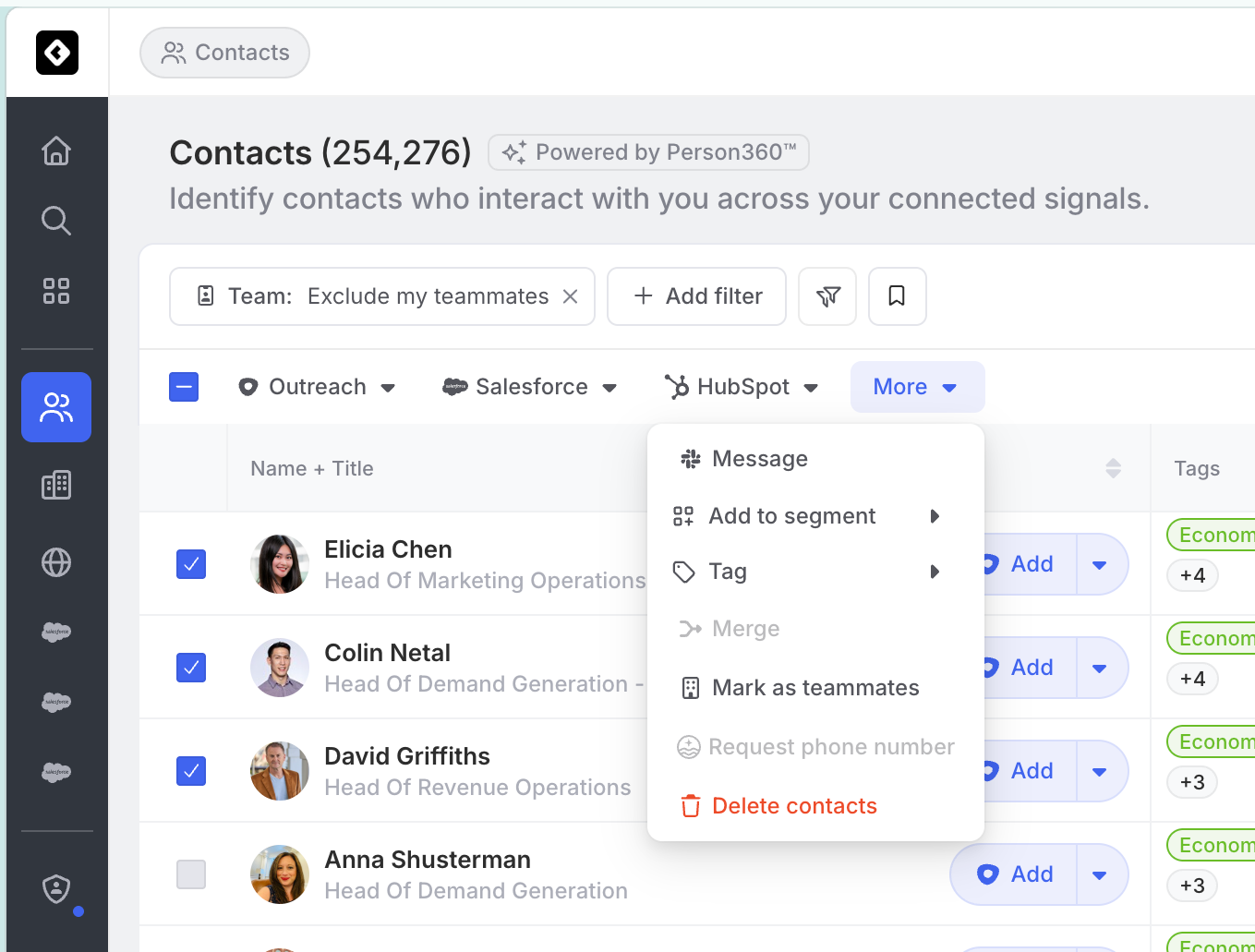
Option 1: Delete Selected Contacts
Use this method to delete specific contacts you have identified.
- In the left sidebar, click Contacts.
- Check the box next to each contact you want to delete.
- In the toolbar that appears, click the More menu ( … ).
- Select Delete contacts.
- In the confirmation dialog, review the number of contacts listed, then type that exact number into the confirmation field.
- Click Delete contacts to confirm.
Option 2: Delete All Contacts Matching a Filter
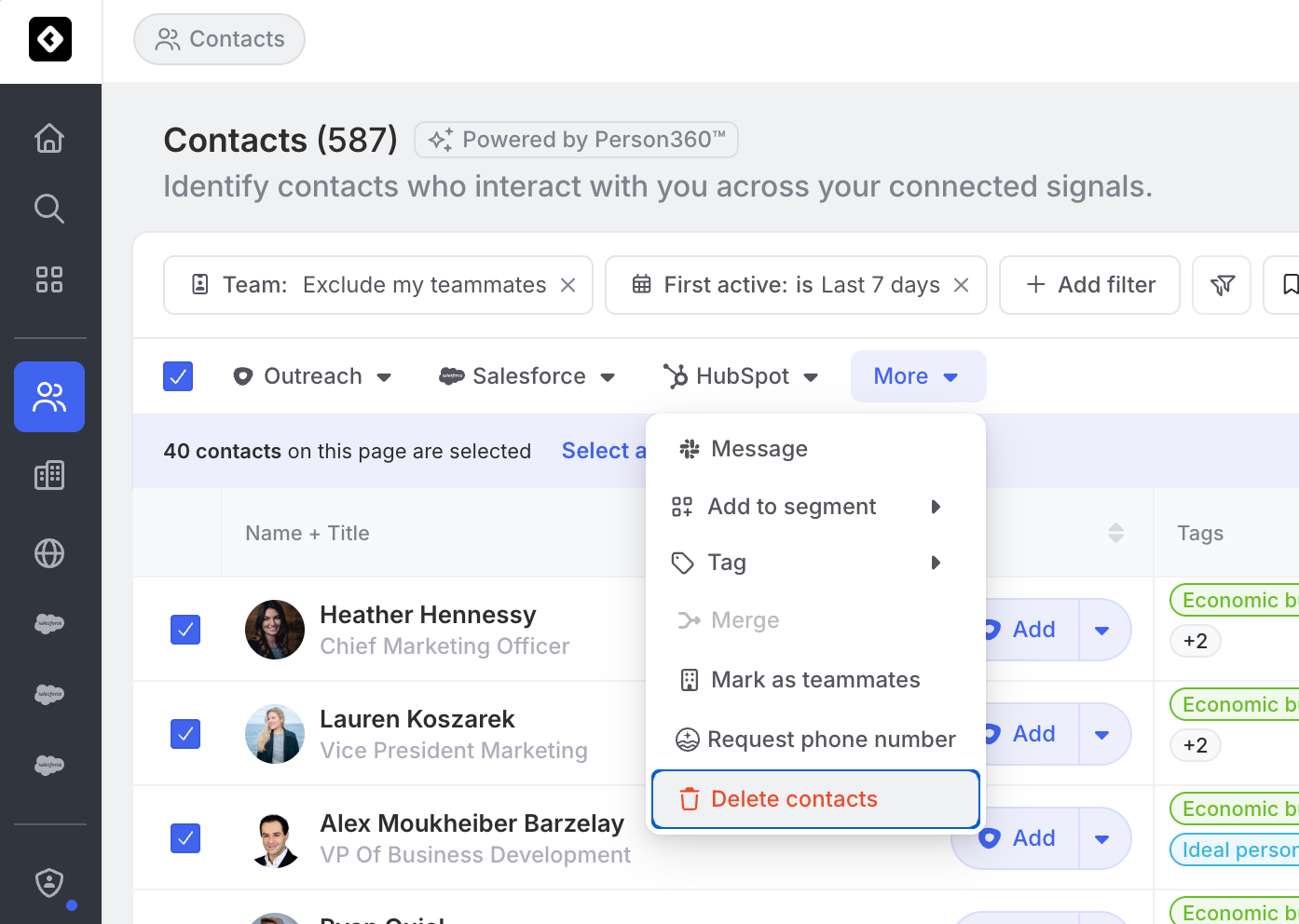
Use this method to delete a group of contacts based on shared attributes or criteria (for example, contacts from a specific source, with a particular tag, or inactive for a defined period).
- In the left sidebar, click Contacts.
- Apply one or more filters to narrow the list to the contacts you want to remove.
- Click Select all to select every contact matching your current filter criteria.
- Click the More menu ( … ) in the toolbar.
- Select Delete contacts.
- In the confirmation dialog, review the total number of contacts, type that exact number into the confirmation field, and click Delete contacts.
Confirming the Deletion
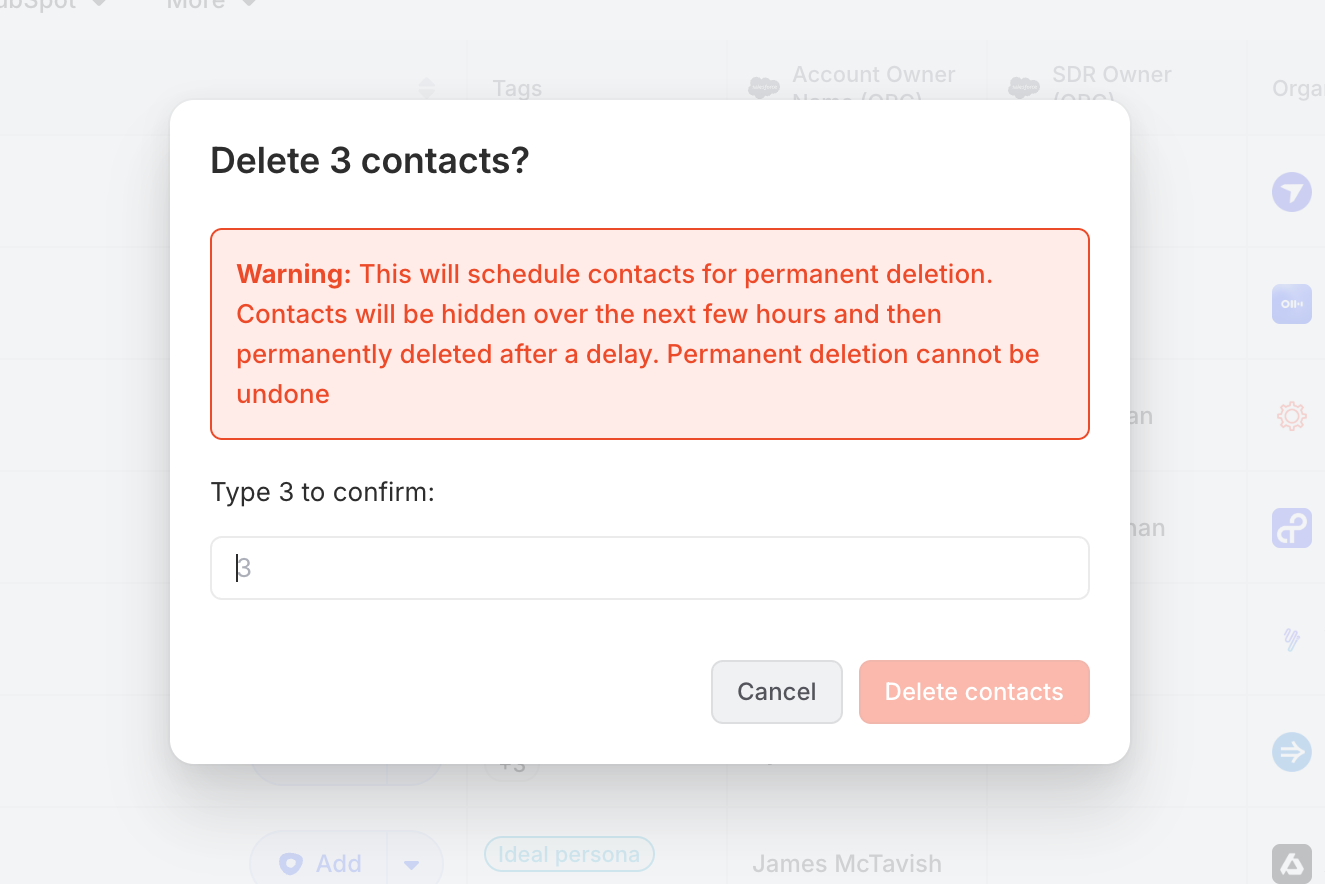
Whenever you initiate a deletion, a confirmation dialog appears showing:
- A warning that the action will schedule contacts for permanent deletion
- The exact number of contacts to be deleted
- A text field requiring you to type that number to confirm
This safeguard is intentional — it prevents accidental bulk deletions. The Delete contacts button remains inactive until the correct number is entered.
What Happens After Deletion
Immediately after confirming
- A notification confirms that deletion is in progress.
- Contacts begin to be hidden from all views within a few hours.
While contacts are scheduled for deletion (recovery window)
- Contacts do not appear in the Contacts explorer or any segments.
- Contacts are excluded from automations.
- A workspace admin can still restore contacts during this window.
After permanent deletion
All data associated with the contact is removed, including: <a name="what-is-removed"></a>
- Profile information and identifiers
- Activity history
- Segment memberships
- Custom field values
- Notes and recorded interactions
- Any activities exclusively linked to the deleted contact
Monitoring Deleted Contacts
You can track deletion activity and its impact on your contact count in the Subscription settings.
- Click Settings in the bottom-left corner of the sidebar.
- Select Subscription.
- Click the Usage tab.
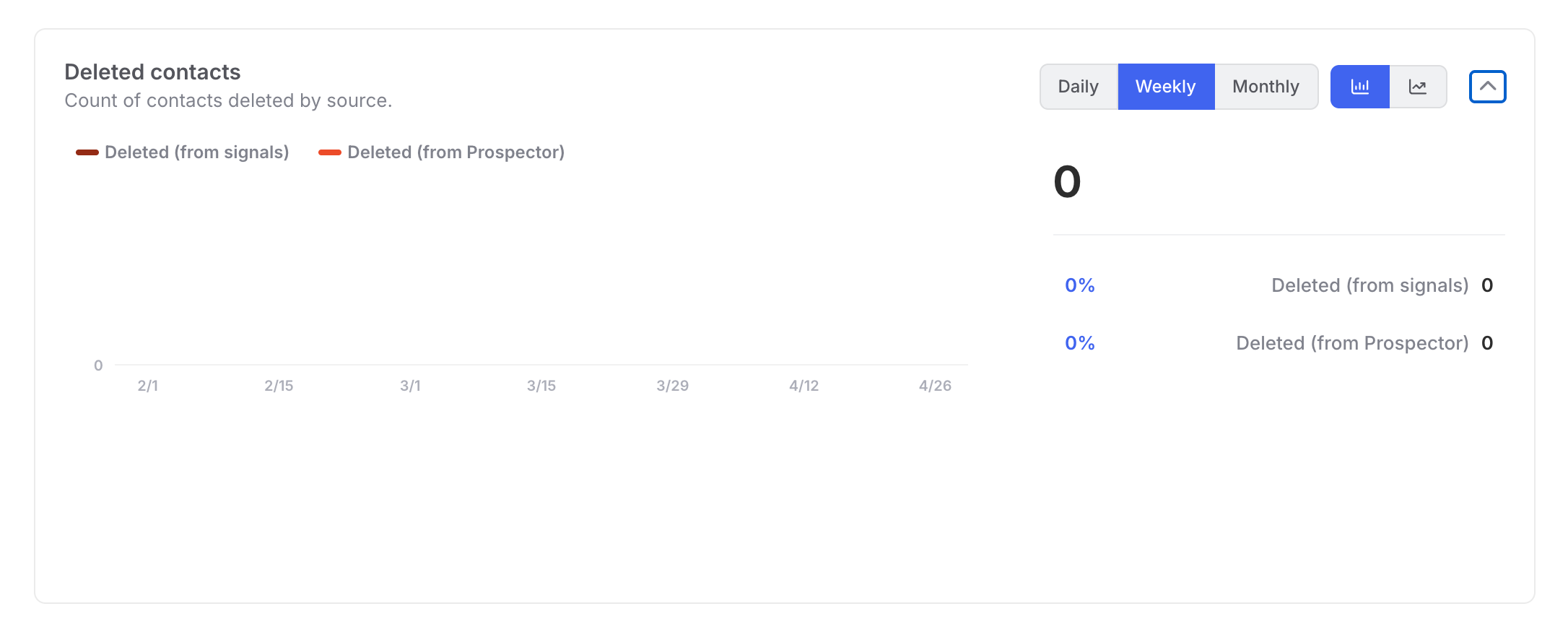
- Scroll to the Deleted contacts chart.
The chart shows deleted contact volume over time, broken down by source (signals vs. Prospector). Your current active contact count — shown on the same page — reflects only non-deleted contacts. Deleted, merged, hidden, and anonymized contacts are excluded from this number.
Contacts and Data Syncs
If a permanently deleted contact reappears in a connected data source (such as a CRM sync), Common Room will create them as a brand-new contact with no prior history. Previously deleted data is not restored.
Expected Outcome
After a successful deletion:
- ✅ A confirmation notification appears immediately.
- ✅ Selected contacts disappear from all views within a few hours.
- ✅ The active contact count in Settings > Subscription > Usage decreases accordingly.
- ✅ During the recovery window, a workspace admin can restore contacts if needed.
- ✅ After the delay period, contacts and all associated data are permanently removed.
Troubleshooting
| Issue | Likely Cause | Resolution |
|---|---|---|
"Delete contacts" option is not visible | Insufficient permissions | Contact your workspace admin to confirm you have the delete contacts permission. |
The Delete button stays grayed out | The number entered in the confirmation field does not match the contact count | Re-enter the exact number shown in the dialog. |
Deleted contacts are still appearing in a view | Contacts may still be in the "scheduled for deletion" stage | Allow a few hours for contacts to be hidden across all views. |
A deleted contact reappeared | A connected data sync re-created the contact | Review your CRM or integration sync settings and suppress the contact at the source. |
Need to restore a deleted contact | Contact is still in the recovery window | Contact your workspace admin immediately — restoration is only possible before permanent deletion completes. |
Frequently Asked Questions
Who can delete contacts? Only workspace admins with the delete contacts permission can delete contacts.
Can a deletion be undone? Yes — but only during the recovery window between when a contact is hidden and when it is permanently deleted. Your workspace admin can restore contacts during this period. Once permanent deletion occurs, recovery is not possible.
How long is the recovery window? Contacts are hidden from views within a few hours of initiating deletion. Permanent deletion occurs after an additional delay. Contact [Common Room Support] for the specific duration applicable to your workspace.
Will deleted contacts come back if they exist in a connected data source? If a permanently deleted contact reappears via a sync, they will be created as a new contact with no prior history.
Does deleting contacts affect my billing? Yes. Deleted contacts are removed from your active contact count, which may affect usage-based billing. You can track this in Settings > Subscription > Usage.
Can I delete contacts in bulk? Yes. You can select contacts individually or use filters with Select All to delete large groups at once.
What happens to activities from deleted contacts? Activities associated only with the deleted contact are removed. Activities shared with other contacts (such as group conversations) are preserved but disassociated from the deleted contact.
Have feedback on our Help Guides? Contact Support at support.commonroom.io.