Customize Layouts
Last updated Apr 30th, 2026
Applies to: Workspace Admins Access path: Settings → Layouts
Overview
Layouts give workspace administrators precise control over how information is presented across Common Room — including contact and organization profile pages, explorer table views, the left-hand navigation sidebar, and action buttons on contact profiles.
By configuring layouts per role, you can ensure every team member sees exactly what they need for their workflow — and nothing they don't. For example, your sales team can see a streamlined contact view focused on deal-related fields, while operations or CS teams retain access to the full data set.
Layout changes take effect immediately for all users on their next page load. Only workspace admins can create or modify layouts.
Who This Is For
| Persona | Use Case |
|---|---|
Workspace Admin | Configure and publish layouts for all roles |
What You Can Customize
Layouts are organized by entity and surface type. An entity is the object you're customizing (e.g., Contacts, Organizations), and a surface type is how that object is displayed.
Surface Types
Profiles Control what appears on a contact or organization detail page — including which tabs are visible (e.g., Overview, Activity, Accounts), their order, and which widgets appear within the Overview tab.
Tables Control which columns appear in explorer and list views, their order, and the default sort column.
Navigation Control which items appear in the left sidebar, and in what order. Navigation is workspace-wide and is not tied to a specific entity.
Actions (Contacts only) Control which action buttons appear on contact profiles (e.g., Send Email, Create Task, Add to Sequence), their order, and which action is set as the primary button.
Supported Entities
| Entity | Profile | Table | Actions | Navigation |
|---|---|---|---|---|
Contacts | ✓ | ✓ | ✓ | |
Organizations | ✓ | ✓ | ||
Custom Objects | ✓ | ✓ | ||
Provider Objects (e.g., Salesforce) | ✓ | ✓ |
Navigation is a workspace-wide surface and is managed separately under the Navigation entity in the Layouts sidebar.
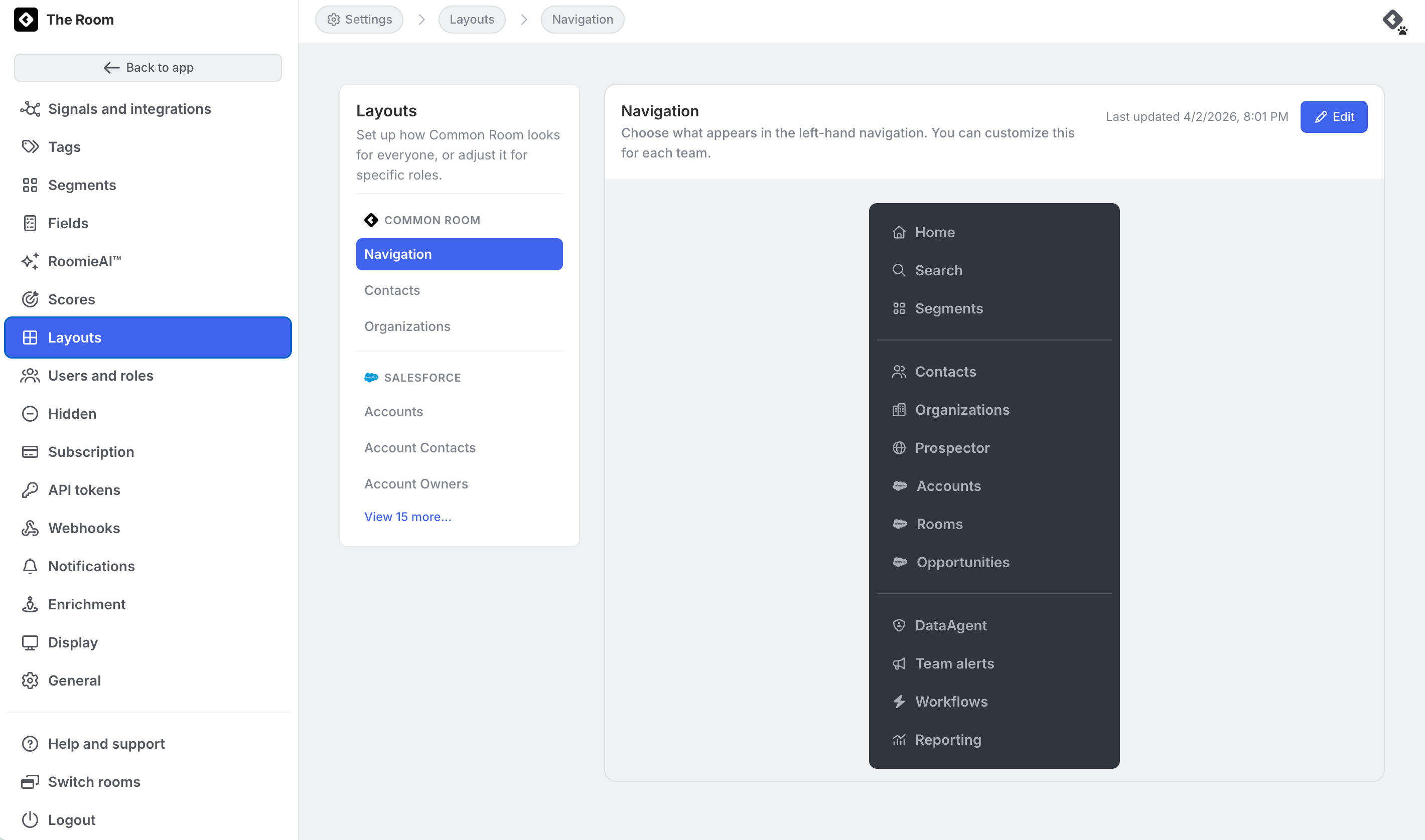
Accessing the Layouts Settings
- Click Settings in the bottom-left corner of the sidebar.
- Select Layouts from the settings menu.
- Choose the entity you want to configure: Navigation, Contacts, Organizations, or a Connected Object.
Step-by-Step Instructions
Customizing a Profile Layout
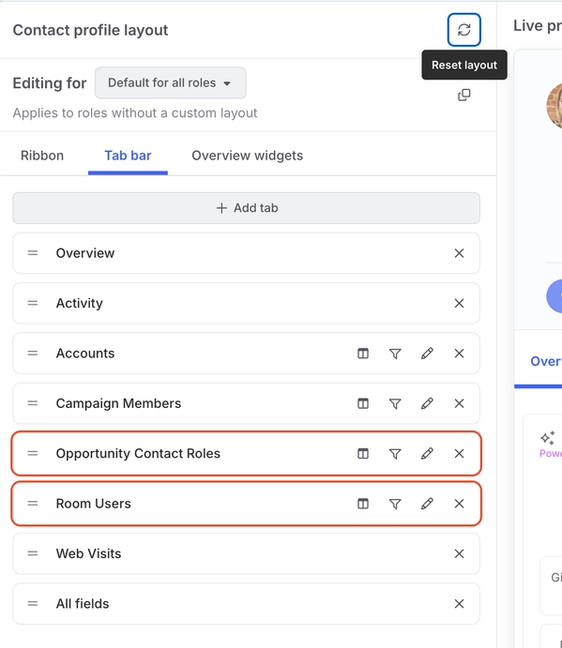
Profile layouts control which tabs appear on a detail page and what content is shown in each tab.
- Go to Settings → Layouts and select the entity (e.g., Contacts).
- Click Edit on the Profile preview card.
- To reorder tabs, drag them to the desired position.
- To remove a tab, click the remove icon next to it.
- To add a tab, click Add tab and select from the available options.
- If the Overview tab is present, scroll to the Overview widgets section to manage individual widgets:
- Click Add widget to add a new widget.
- Click the gear icon on an existing widget to configure its properties.
- Drag widgets to reorder them.
- Click Save to apply your changes.
Customizing a Table Layout
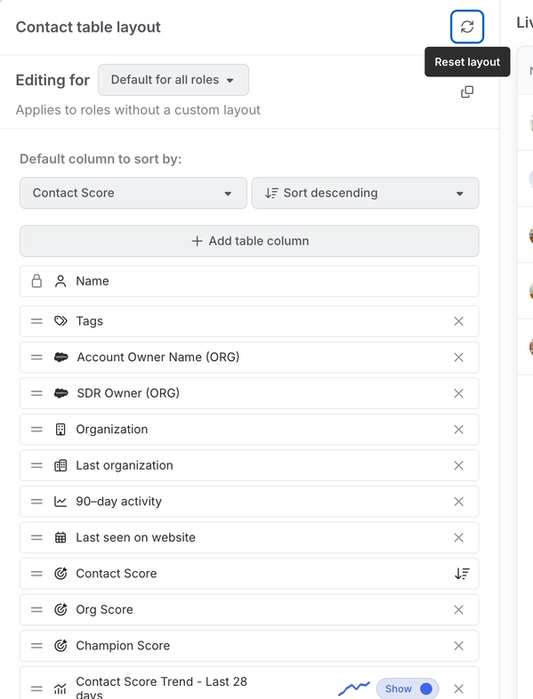
Table layouts control which columns appear in explorer and list views.
- Go to Settings → Layouts and select the entity.
- Click Edit on the Table preview card.
- Add or remove columns using the column list.
- Drag columns to set the display order.
- Set the default sort column if needed.
- Click Save to apply your changes.
Customizing Navigation
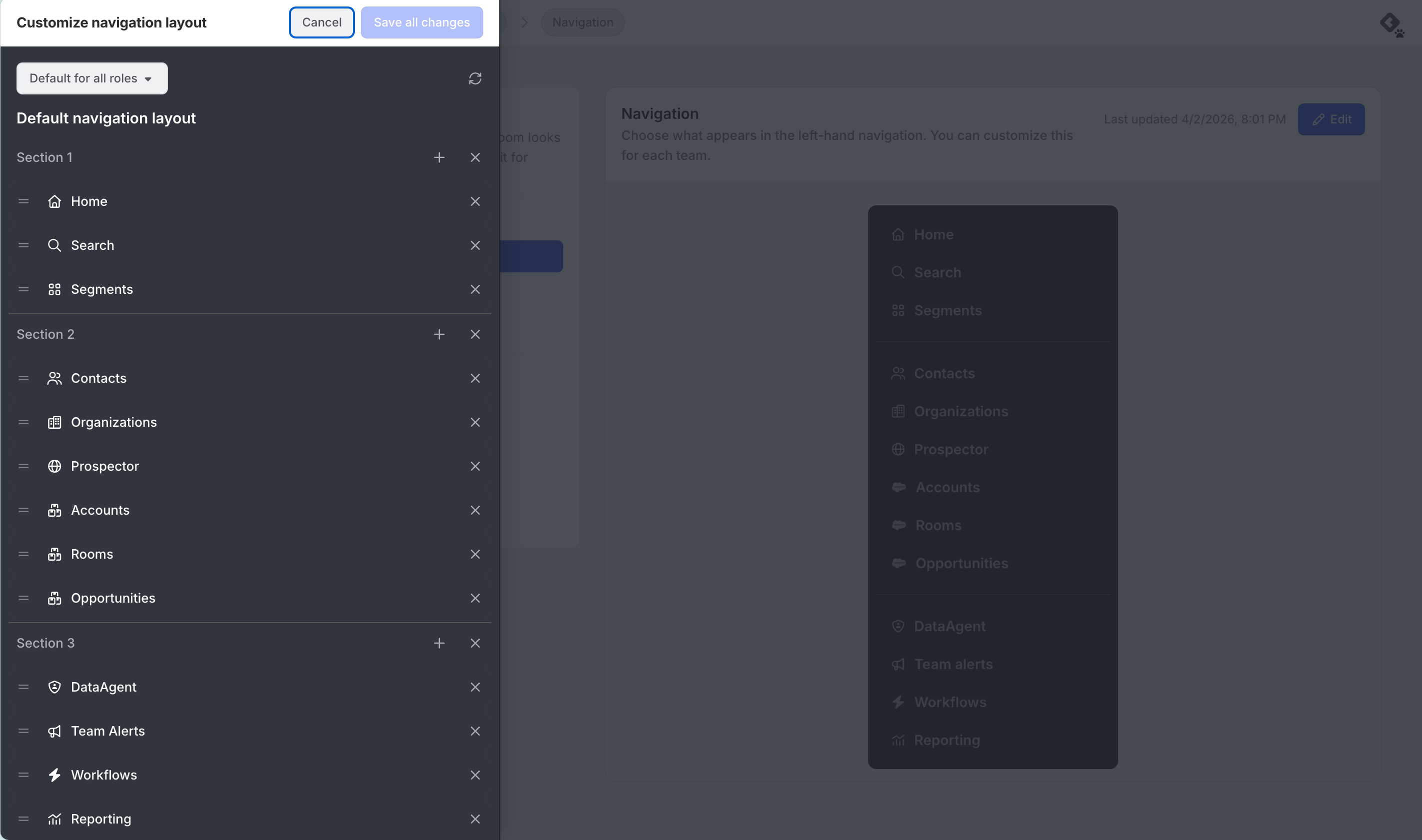
Navigation layouts control which items appear in the left sidebar and in what order.
- Go to Settings → Layouts.
- Click Navigation in the Layouts entity list.
- Click Edit on the Navigation preview card.
- Toggle sidebar items on or off using the toggle switches.
- Drag items to reorder them.
- Click Save to apply your changes.
Customizing Actions (Contacts Only)
Action layouts control which buttons appear on contact profiles and which is designated as the primary action.
- Go to Settings → Layouts → Contacts.
- Click Edit on the Actions preview card.
- Toggle individual actions on or off.
- Drag actions to reorder them.
- To set the primary action, click Mark as primary on the desired action. To remove a primary action designation, click Remove as primary.
- Click Save to apply your changes.
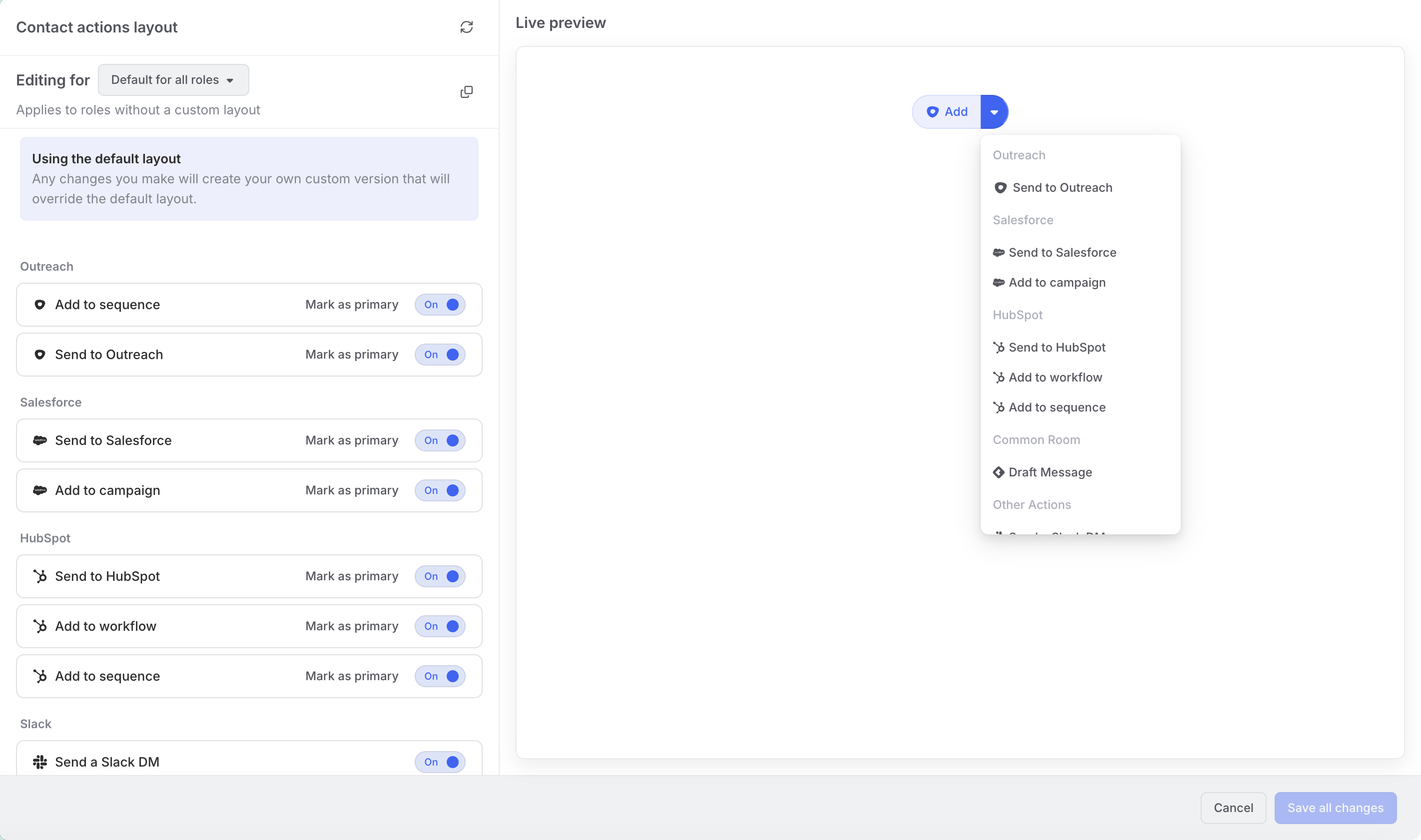
Customizing Layouts by Role
By default, layout changes apply to all workspace members. You can also create layouts tailored to specific roles so different teams see different views.
To create or edit a role-specific layout:
- Open the Edit modal for any surface (Profile, Table, Navigation, or Actions).
- Use the Editing for dropdown at the top of the modal to select the role you want to customize.
- Make your changes to the layout for that role.
- (Optional) To use the current layout as a starting point for another role, click the Clone icon (double-square icon) to the right of the role selector. This copies the current layout into a new role-specific configuration, which you can then modify independently.
- (Optional) To discard unsaved changes for the selected role, click the Reset icon (refresh icon) above the role selector.
- Click Save.
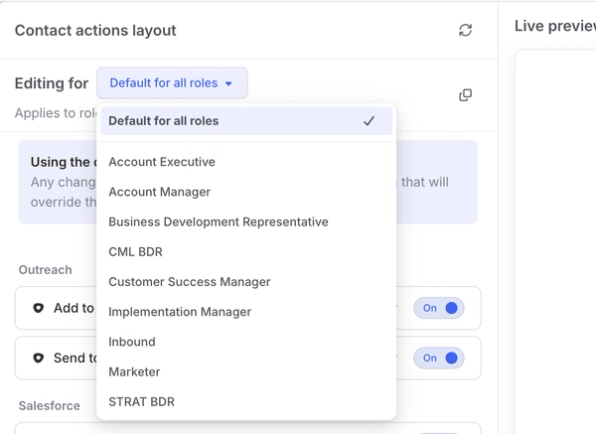
Resetting and Cloning Layouts
Reset to Default
Within any layout Edit modal, click the Reset (refresh) icon to revert to either:
- The last saved layout for that role, or
- Common Room's default layout, if no custom layout has been saved for that role.
Clone a Layout
To base a new role's layout on an existing one:
- In the Edit modal, select the source role from the Editing for dropdown.
- Click the Clone icon (double-square icon).
- Select the target role to receive the cloned layout.
- Modify the layout as needed, then click Save.
Cloning is useful when two roles need similar — but not identical — views.
Special Cases: Segments and Profile Tab Explorers
Two layout types are configured outside of the main Layouts settings:
Segment explorer columns: Column configurations for segment explorer views are set directly within each segment via the Edit columns button in the segment explorer. These configurations cannot be set by role and are not accessible from the Layouts settings page.
Profile tab columns: Column configurations for individual profile tabs are set directly within each profile tab via the Edit columns button. These can be configured per role, but must be modified from within the profile tab itself — they are not surfaced in the Layouts settings page.
What Good Looks Like
After configuring layouts, you should expect:
- Immediate effect: All users see the updated layout on their next page load — no additional publish or deploy step is required.
- Role-based consistency: Users assigned to a role see only the surfaces, tabs, columns, and actions configured for that role.
- Default fallback: Users with no role assigned, or roles without a custom layout, see Common Room's default layout.
- Admin control preserved: Only workspace admins can modify layouts; end users see their configured views but cannot change them.
Frequently Asked Questions
Who can customize layouts? Only workspace admins can access and modify layout settings. All other team members see the layout configured for their role, or the default layout if none has been assigned.
What happens if I don't configure any layouts? All workspace members will see Common Room's default layout for every surface. No changes occur until an admin creates a custom layout.
Can different teams see different views? Yes. Each layout surface supports role-based customization. You can create a unique layout for each role, or leave certain roles on the default.
Do layout changes take effect immediately? Yes. Once you save a layout, affected users will see the updated view on their next page load — no additional action is required.
Can I undo a layout change? Yes. Use the Reset button within the Edit modal to revert to the default or last saved state. You can also re-enter the Edit modal and make further adjustments at any time.
Which integrations support connected object layouts? Layouts can be customized for connected objects from Salesforce and other supported providers. The available objects depend on which integrations are active in your workspace. Contact your admin or refer to your integration settings for a full list.
Can I configure layouts for segments or individual profile tabs? Yes, but these are configured directly within the relevant view — not via the Layouts settings page. Segment explorer columns are set via the Edit columns button inside the segment explorer. Profile tab columns are set via the Edit columns button inside each profile tab. Profile tab columns can be configured per role; segment explorer columns cannot.
Have feedback on our Help Guides? Contact Support at support.commonroom.io.