Natural Language Filtering
Last updated Sep 23rd, 2026
Overview
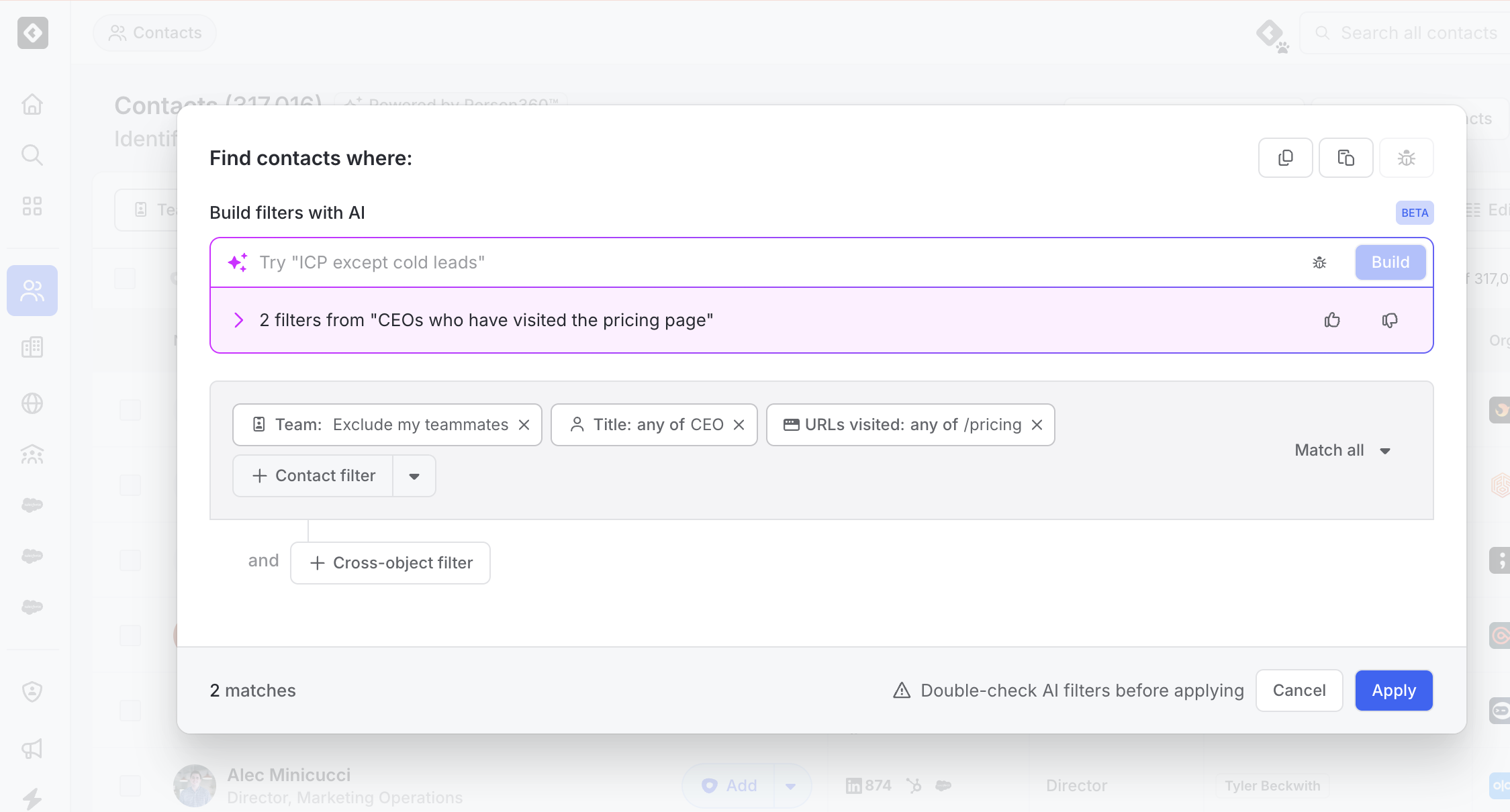
Natural Language Filtering lets you build filters in Common Room by describing what you want in plain English. Type something like "enterprise accounts in the Northeast with no activity in 30 days", and Common Room turns it into standard filter chips and shows the matching records right away.
The result is a regular Common Room filter, not a separate AI view. You can see every chip that was generated, remove any you don't want, and save or use the filter anywhere a hand-built filter works.
Why it matters
- Get to the right list faster. Describe your audience in one sentence instead of adding and configuring filters one at a time.
- Less back-and-forth with RevOps. Reps and AEs can build the filters they need for account research and territory planning on their own.
- Nothing is hidden. Every result comes from filter chips you can review, so you always know why a record is on the list.
Availability and where you can use it
Natural Language Filtering is included in all Common Room plans at no extra cost and is available to every workspace. It's currently in public beta, so you'll see a Beta tag next to it in the app. There is nothing to connect or configure: click + Add Filter on any of the surfaces below and use the Search or describe filters box.
| Surface | What you can do |
|---|---|
Contacts | Filter people by title, activity, location, tags, and other contact fields |
Organizations | Filter accounts by firmographics, engagement, owner, and other organization fields |
Activity | Filter the activity feed by signal type, source, timeframe, and more |
Settings > Score | Describe the filters for a score's inclusion and exclusion criteria |
Workflows | Describe the filters for a workflow's trigger or apply criteria |
Segments | Describe the filters for your segment in plain language while building it |
Who can use it: Anyone who can create or edit filters on a surface can use natural language on that surface. Your existing roles and permissions apply.
Filters only: On every surface, natural language builds filters. It doesn't set other options, such as a segment's name, description, assignments, or columns, or the rest of a score or workflow's configuration.
How it works
When you submit a description, Common Room reads it, matches each part to the Common Room fields, tags, and signals it refers to, and builds the filter chips. The result set loads as soon as the chips are applied.
- The chips are the source of truth. The results always reflect the chips shown, not your original wording. If a chip doesn't match what you meant, remove it.
- You'll see a progress state while your description is being translated, usually a few seconds.
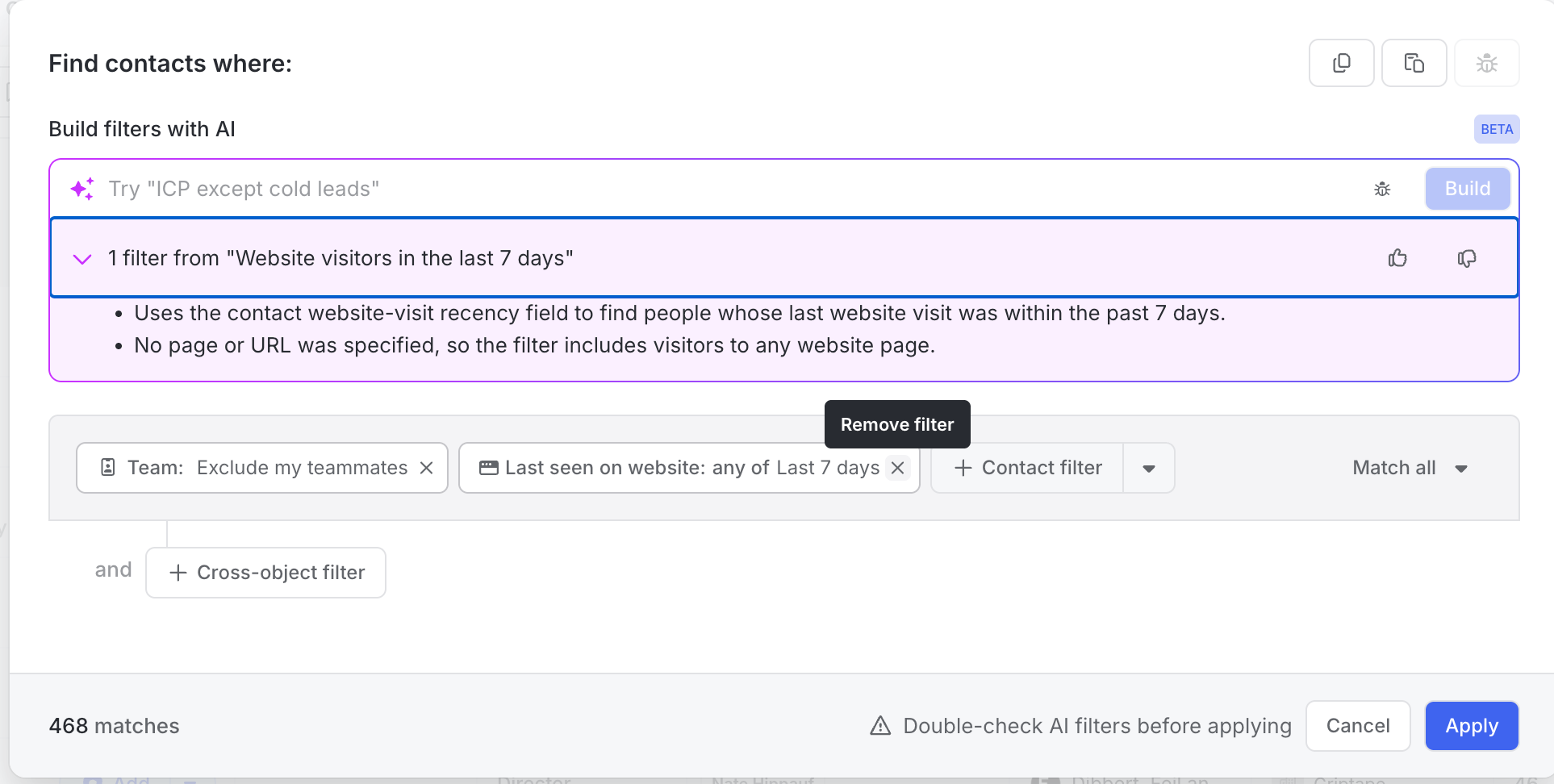
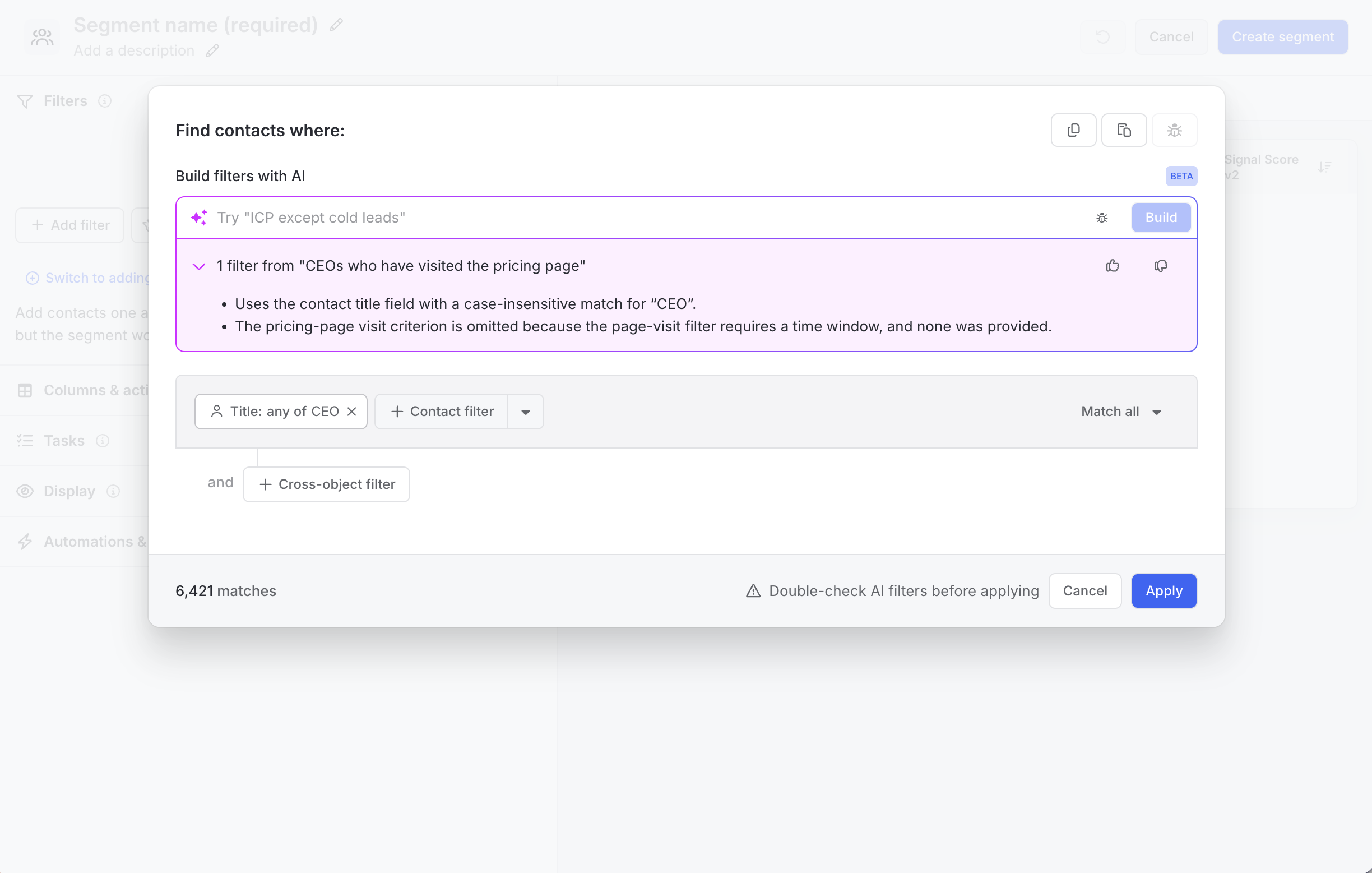
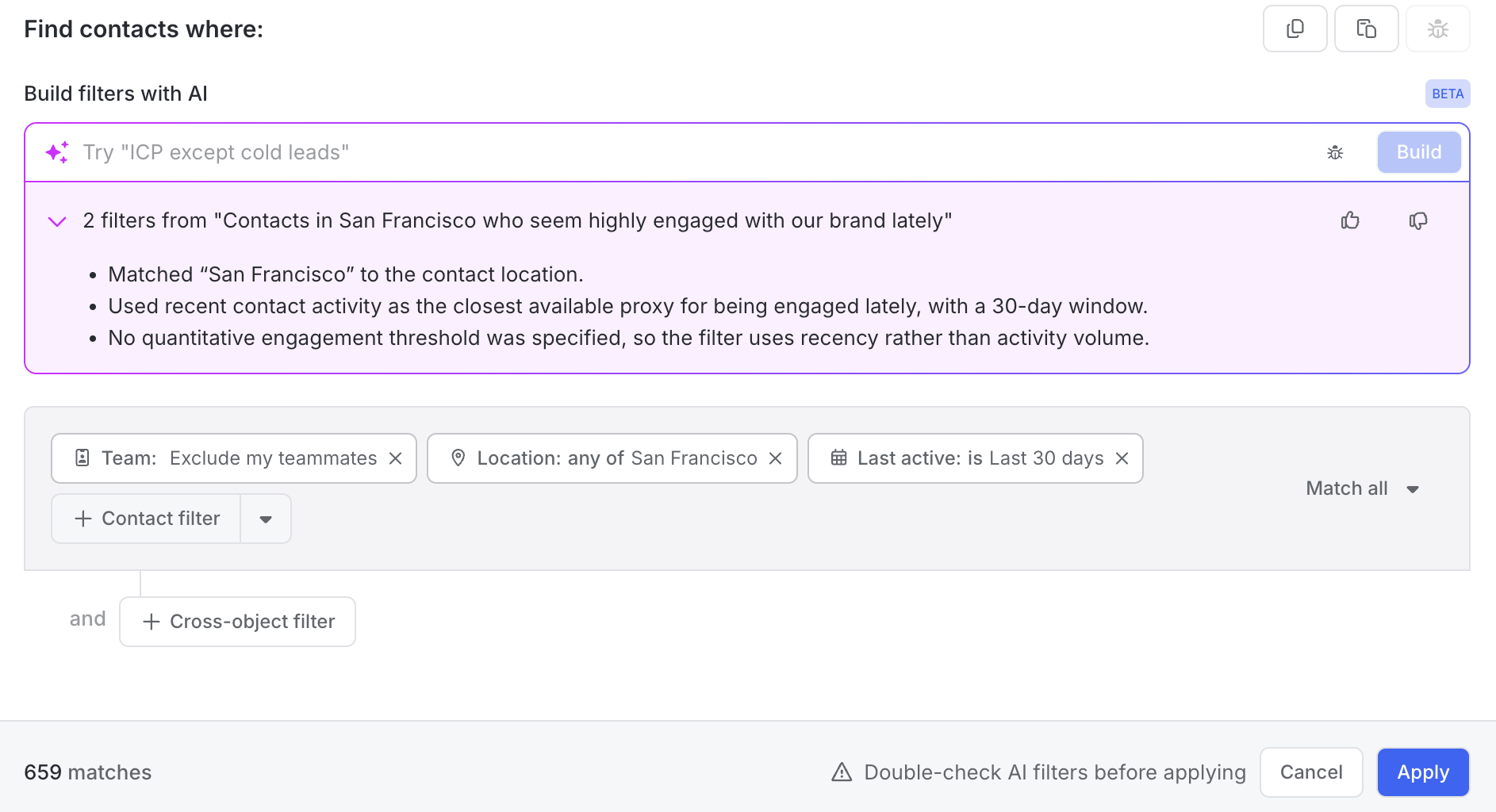
- If Common Room can't translate part of a request, it applies the parts it understood and tells you what it skipped. Expand the explanation section to see, in plain text, what was applied and what wasn't.
- Generated filters are identical to manual ones. Filters added with natural language behave exactly like filters added by hand in segments, scores, workflows, and lists.
Build a filter with natural language
- Click + Add Filter on Contacts, Organizations, Activity, or any other supported surface.
- Describe who or what you're looking for in the Search or describe filters box, marked with a sparkle icon. You can type a plain-language description, like "CEOs who have visited the pricing page," or search for a specific filter by name.
- Press Enter or click submit. Common Room shows a progress state while it builds your filter.
- Review the generated filter chips and the results.
- Add or remove filters as needed. To add more, type another description; new filters are added to the ones already applied. To remove a filter, click the X on its chip. Chips can't be edited in place, so to change one, remove it and describe the corrected filter.
- Use the results. Save the view, add records to a segment, export, or take action as you normally would.

Filter a segment
- In the segment builder, go to the Filter section, click Add Filter+, and describe the filters you want, for example "VPs and directors of Engineering at companies with 500+ employees who visited the pricing page this month."
- Review the generated chips and the matching members.
- Remove any chip that isn't right and describe the corrected filter.
- Finish setting up the segment as usual, then save. Natural language only adds filters, so the segment's name, description, assignments, and columns are set the normal way.
Filter score or workflow criteria
- In Settings > Score, open a score's inclusion or exclusion criteria. For a workflow, open its trigger or apply criteria.
- Click + Add Filter and describe your filters in plain language.
- Review the generated chips carefully, then save. Natural language only adds filters here, so configure the rest of the score or workflow as usual.
Check the preview before saving score or workflow criteria. These criteria run automatically, so it's worth confirming the chips match your intent.
Example prompts
These are good starting points. Swap in your own titles, regions, timeframes, and signals.
| Surface | Example prompt | Good for |
|---|---|---|
Contacts | "CEOs who have visited the pricing page" | Reaching senior buyers showing intent |
Contacts | "VPs and directors in Engineering who are active in Slack" | Finding champions to engage |
Contacts | "People with VP in their title who visited the pricing page in the last 14 days" | High-intent follow-up |
Organizations | "Enterprise accounts in the Northeast with no activity in 30 days" | Re-engagement and territory planning |
Organizations | "Accounts with 3 or more website visits this week" | Surfacing accounts heating up |
Activity | "Website visits to the pricing page from the last 7 days" | Monitoring buying signals |
Score criteria | "Exclude contacts with a personal email domain" | Keeping scores focused |
Contacts | "Contacts at accounts where the CRM account status is Customer" | Filtering on synced CRM fields |
Writing prompts that work
- Be specific. "Directors of Marketing at companies with 200–1,000 employees" works better than "mid-size marketing leaders."
- Include a timeframe for activity, like "in the last 30 days" or "this week."
- Use the names you see in Common Room for fields, tags, and signals. If you've created a custom tag, refer to it by name.
- Start simple, then layer. Get the core audience right, then add more filters by typing another description or adding them manually.
Accuracy and limits
| Consideration | What to expect | What to do |
|---|---|---|
Complex, cross-object requests | Simple and moderately detailed requests work well. Requests that combine many conditions across contacts, organizations, and activity are less reliable. | Break the request into smaller pieces, or generate the core filter and add the rest by hand. |
Parts Common Room can't translate | Common Room applies the parts it understood and skips the rest. | Expand the explanation section to see what was skipped, then rephrase or add that filter manually. |
Similar field names | A keyword may match a similarly named field, such as a calculated field, that isn't the one you meant. | Check each chip. Remove any that use the wrong field and describe the filter again with the exact field name. |
Changing a filter | Natural language filters are additive. Each description adds filters to the ones already applied, and you can't change an existing chip by typing a follow-up. | Click the X to remove the chip, then describe the corrected filter. |
Troubleshooting
- The results don't match what I expected. Look at the chips, not the prompt. The results always follow the chips. Remove any chip that doesn't match your intent.
- Part of my request was ignored. Expand the explanation section to see what was skipped. Rephrase using the field name shown in Common Room, or add that filter manually.
- It's taking a while. Translation usually takes a few seconds. Longer or more complex requests can take more time.
Frequently asked questions
Does Natural Language Filtering cost extra?
No. It's included in all Common Room plans.
Is a filter built with natural language different from one I build manually?
No. It produces the same filter chips. Saved segments, scores, and workflow criteria behave exactly the same way.
Can I change a filter after it's generated?
You can add and remove filters, but not edit a generated chip in place. Click the X to remove a chip, then describe the corrected filter. Type another description anytime to add more filters.
Will it change my existing filters or segments?
No. Natural language only builds the filter you're working on. Existing filters, segments, and scores aren't touched unless you edit and save them.
Can I filter on fields from my CRM?
Yes. If you've connected a CRM, you can describe filters that use its synced fields, just like Common Room fields.
Can natural language set up a whole segment?
Not today. It builds the filters in a segment's Filter section. Set the name, description, assignments, and columns as usual.
Can I refine a result by typing a follow-up, like "just the ones owned by my team"?
Not yet. Natural language filters are additive, so a follow-up adds new filters instead of changing existing ones. To narrow or change a result, remove the chip you want to change and describe the corrected filter.
What happens if Common Room misunderstands my request?
It applies the parts of your request it understood and skips the rest. Expand the explanation section to see, in plain text, what was applied and what was skipped. Then remove any chip that's off and describe it again.
Can I use natural language in Prospector?
Not yet. It's available wherever you see Add Filter+ on Contacts, Organizations, Activity, Score criteria, Workflows, and Segments.