RoomieAI Spark
Last updated Sep 25th, 2026
RoomieAI Spark
Availability
This feature is available to all customers on 2025 plans or Trial plans.
If your workspace is not on one of these plans and you’d like to try the feature, please contact support@commonroom.io or reach out to your Customer Success Manager. We’ll be happy to help you get access.
What is RoomieAI Spark?
RoomieAI Spark automatically synthesizes and summarizes person-level research so your reps can focus on selling instead of searching. Powered by Common Room’s segments, Spark analyzes recent buying signals, persona and account fit, business context, and more—then surfaces it directly where your team works.
You’ll receive real-time alerts in Slack or email that tell reps who to engage, why they matter, and what to do next—complete with contextualized insights, account activity, and recommended actions.
Think of Spark as your AI research agent that transforms raw signals into ready-to-act intelligence, ensuring no hot lead slips through the cracks.
What are RoomieAI Spark Alerts?
AI-augmented notifications that add real-time context and next-step guidance. When a contact meets a segment condition (e.g., pricing visit, community join, GitHub activity), Common Room can notify:
- A Slack channel (group notifications), or
- A rep directly in Slack/email (individual notifications)
Each alert includes the relevant contact, account, and activity context.
Types of Notifications
Currently, AI notifications support three different trigger conditions:
- Segment additions – when a new contact qualifies for a segment.
- Activity-based alerts – when an existing contact takes a new qualifying action.
- Website visit alerts – when someone from a target segment visits a key page.
How to Set Up RoomieAI Spark Alerts
Admin Set-Up
1. Go to your team segments
From the left navigation panel, open Segments and select an existing team segment.
💡 Tip: Start with an active, high-signal segment (like Pricing Page Visits) to quickly see notifications flowing in.
2. Edit the segment
Click the gear icon → Edit segment.
Scroll to the Notifications section.
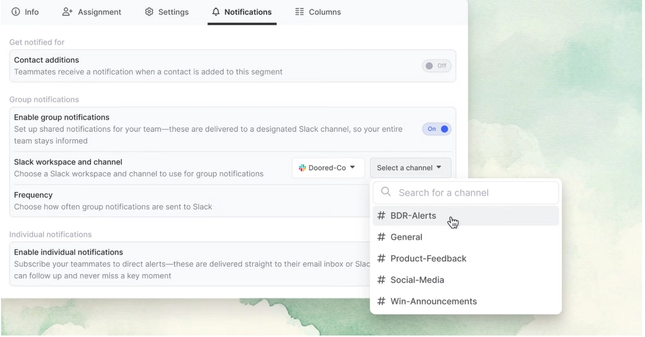
3. Enable notifications
Choose how you want to receive alerts:
- Group notifications → Post alerts in a shared Slack channel for team visibility.
- Individual notifications → Send alerts directly to the owning rep’s Slack or email for personal delivery.
Recommendation: While in beta, start with contact addition notifications to validate setup and quality.
4. Connect Slack
Select an existing Slack channel, or create a new one in your workspace and refresh the list to sync it.
5. Save your changes
Once your preferences are set, click Save to apply them.
6. Test the setup
Add a test contact to your segment to confirm that notifications are firing correctly.
You should see alerts appear in your Slack channel within a few hours, depending on segment activity.
You’re all set! Once notifications are active, reps will start receiving real-time RoomieAI Spark alerts with enriched contact and account insights.
For Reps: Subscribe to notifications yourself
If you’re a rep and want to receive alerts for a specific segment, you can subscribe directly—no admin setup required.
To do this:
- Go to your desired segment.
- Click Subscribe to notifications (in the upper-right corner).
- Choose how you’d like to be notified: Slack DM or email.
You’ll start receiving real-time RoomieAI Spark alerts whenever new contacts qualify for that segment—complete with all the same AI-generated context and insights.
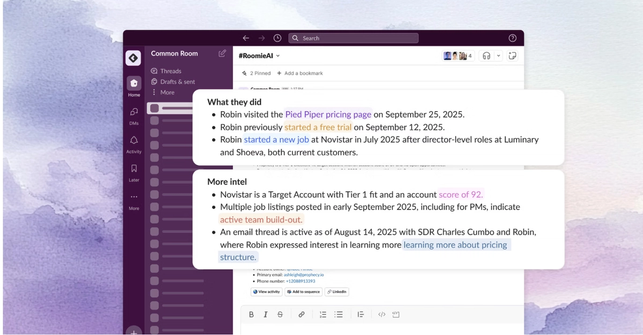
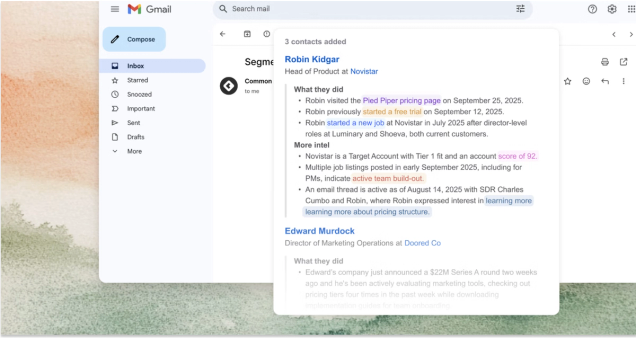
How RoomieAI Spark Appears
RoomieAI Spark surfaces insights where your team already works — in Slack, email, and directly within Common Room.
Below is what to expect once notifications are live.
In Slack
In Email
In the Segment View
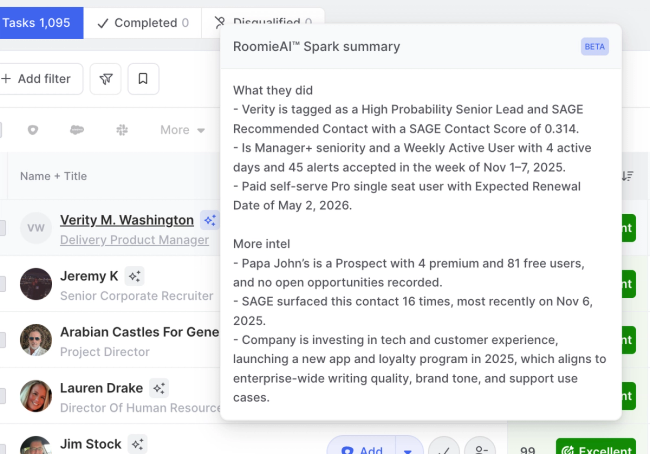
On the Contact Profile
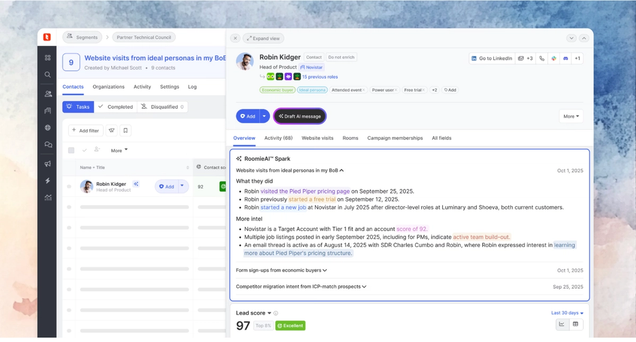
RoomieAI Spark Briefs
Spark Briefs are daily, AI-generated emails that highlight the most interesting buyer activity across your book of business to help you start each day with actionable, high intent signals whether or not you have segments set up.
What Spark Briefs do
Spark Brief analyzes buyer signals across your book of business and delivers a daily summary email to reps each morning. The email highlights:
- Organizations with a summary of notable activity such as spikes in web visits, job changes from key contacts, or company news
- The contacts associated with that activity
From the email, you can click directly into Common Room to explore the organization or contact, review relevant signals, and take action.
How Spark Briefs are different from the Slack Notifications
Spark Briefs and RoomieAI Spark Alerts are complementary features. Spark Alerts are triggered based on segment membership and useful for real-time notice of intent based on the plays and signals you've identified.
Spark Briefs look at all accounts owned by specific users in the platform and send a morning summary of the most recent high-intent activity regardless of segment membership.
Use Spark alerts when you need to act in the moment, while Spark Briefs give you daily intelligence as an overview of your whole territory.
Accessing Spark Briefs
Spark Briefs are enabled automatically to your inbox once the feature is enabled for your workspace. Admins can turn on Spark Briefs for all users in the platform from Notification Settings. Individual reps can turn Spark Briefs on or off separately to their own preference in the same settings page.
During the beta, ownership is determined by rules set across your team segments. this means a CRM must be connected and a Team Segment with ownership rules must be defined for Spark Briefs to be enabled in your Room.
FAQ
Can I use any segment for notifications?
Yes. Notifications work with any team segment. We recommend starting with high-signal, focused segments (e.g., pricing-page visitors, re-engaged closed-lost, high-intent website paths) to reduce noise and increase actionability.
Group vs. individual—what’s the difference?
Group posts to a shared Slack channel and @mentions the owner for visibility and teamwork. Individual sends directly to Slack DM or email—best for personal workflows or when channels get noisy.
Can I use this for closed-lost opportunities or churned customers?
Yes. Many teams set up a segment for contacts at closed-lost accounts. Notifications can then highlight when those contacts re-engage (e.g., visiting your site again), giving reps a chance to re-open conversations.
How do I make sure reps don’t get overwhelmed?
Start small by enabling notifications for one or two high-signal segments. You can also:
- Use group notifications to centralize alerts before enabling individual ones
- Regularly review segment criteria to reduce noise
- Partner with your Common Room CSM to refine setup
Can I monitor notifications as an admin?
Yes. We recommend adding your admins (and your Common Room team) to the notification channel. That way, you can review alert quality, answer rep questions in-thread, and quickly spot if something isn’t working as expected.
Do notifications only work with Slack?
During beta, Slack is the primary destination. Individual notifications can also be sent via email. Other destinations may be added in the future based on customer feedback.