
Teams, Managers, and Manager Reporting (Beta)
Last updated Sep 23rd, 2026
Overview
Teams, Managers, and Manager Reporting give front-line sales managers an org structure in Common Room and a reporting view scoped to it. A manager can see how their team is doing in one place, without exporting reports or checking each rep one by one.
The feature has two parts, built to be used together:
- Teams and Managers (available in beta): organize your users into teams and nested sub-teams, and assign a manager to each.
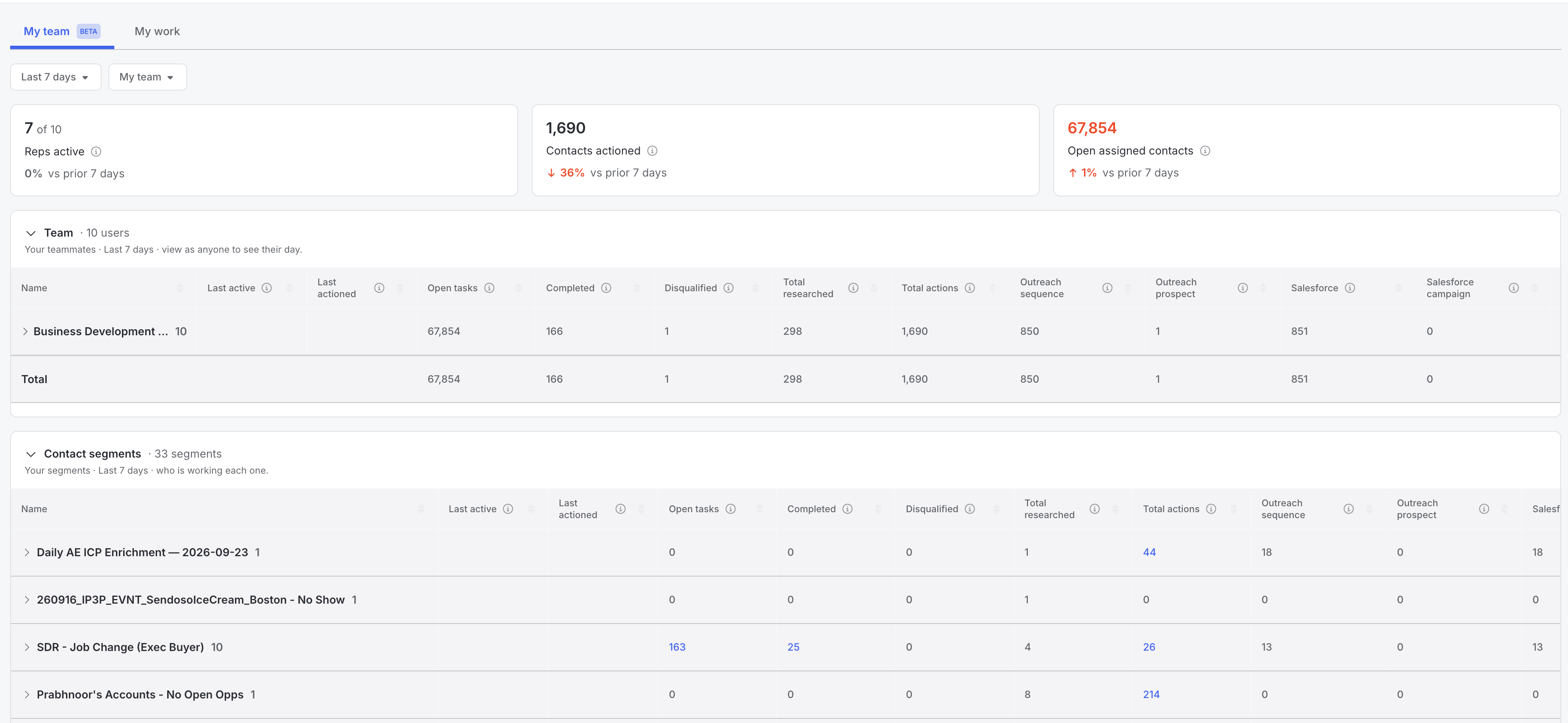
- Manager Reporting Dashboard (available in beta): a home page view for managers showing team- and rep-level performance (contacts assigned, actioned, and completed), with drill-down into the contacts behind each number.
Set up Teams and Managers first. The dashboard has no data to show until a manager has a team.
Why it matters
Roles in Common Room group users by function, not by reporting line. A Role like "SDR" might hold 40 reps across 5 managers and 2 regions, so any view filtered by Role shows the whole group, not one manager's reps.
Teams fix that. Every rep belongs to a team, every team has a manager, and every manager gets a view scoped to their own people. A manager can answer "which of my reps worked their segment this week?" without building filters by hand.
Before you begin
- You need the Admin permission to create and edit teams and assign managers in Settings > Users and Teams.
- Each rep can belong to one team. Plan your structure before you start, especially if you use nested teams.
- Nesting supports three levels: parent team, sub-team, and sub-sub-team (for example, Director > Manager > Rep).
- Teams are created one at a time in the settings UI. If you have a large org, contact your Common Room account team for help with your initial setup.
Set up teams and managers
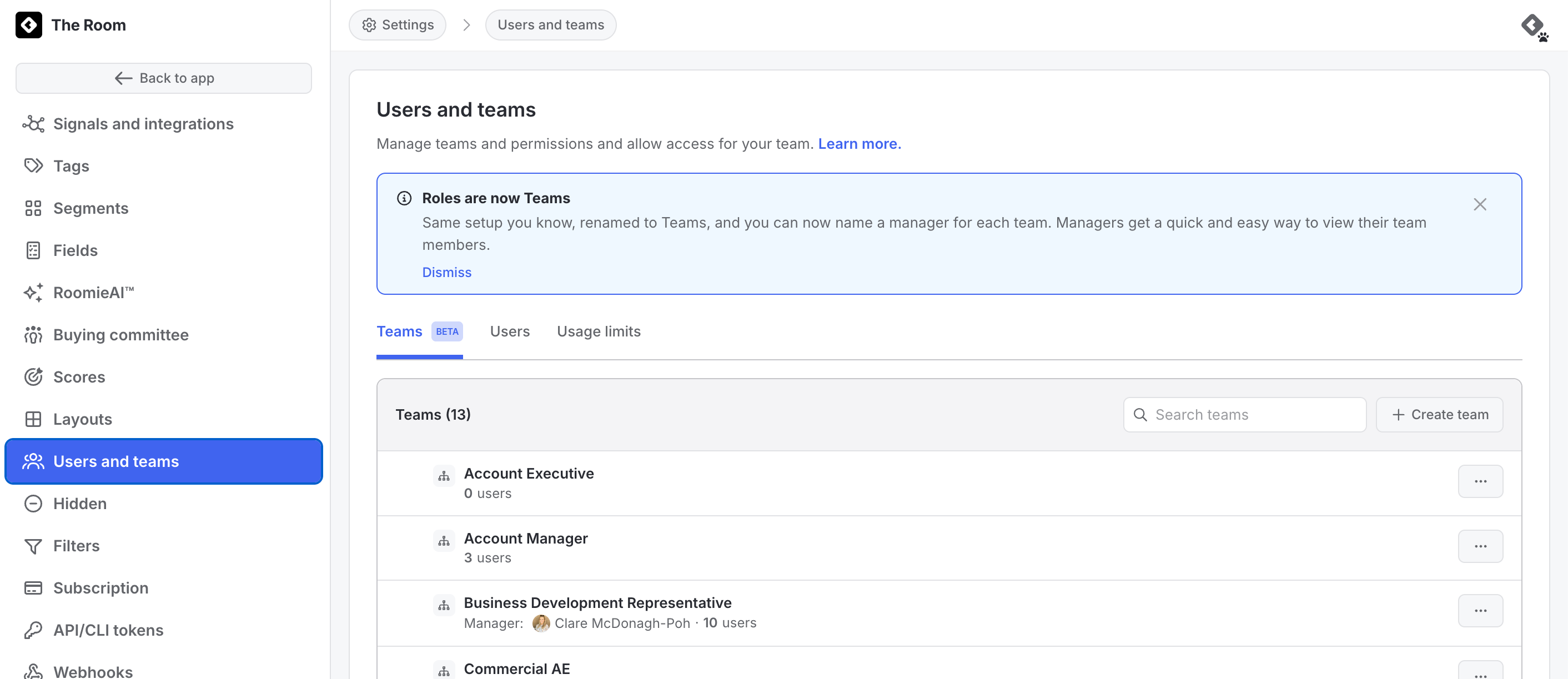
- Go to Settings > Users and Teams in Common Room.
- Create a team and give it a name.
- Assign a manager to the team (optional).
- Add members to the team. You can add existing users or invite new ones.
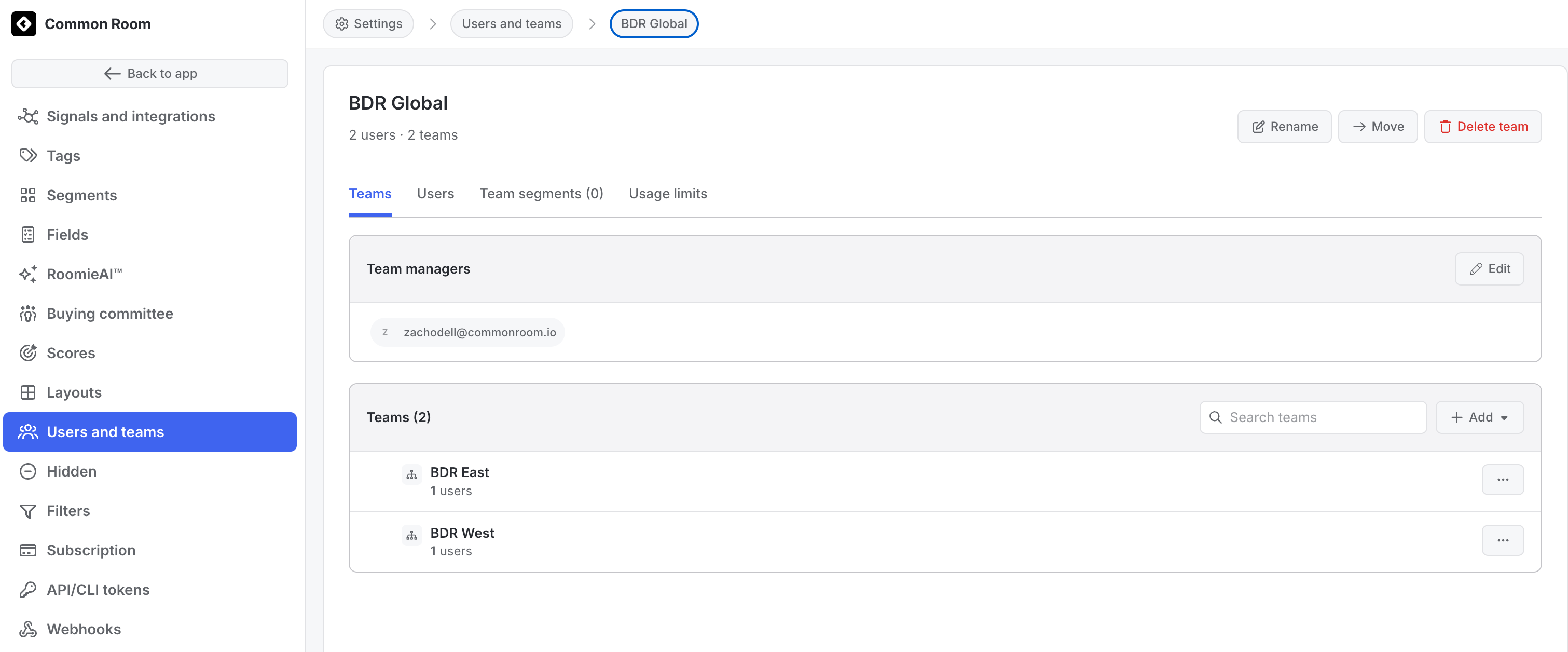
- Nest sub-teams under a parent team to build a layered structure.
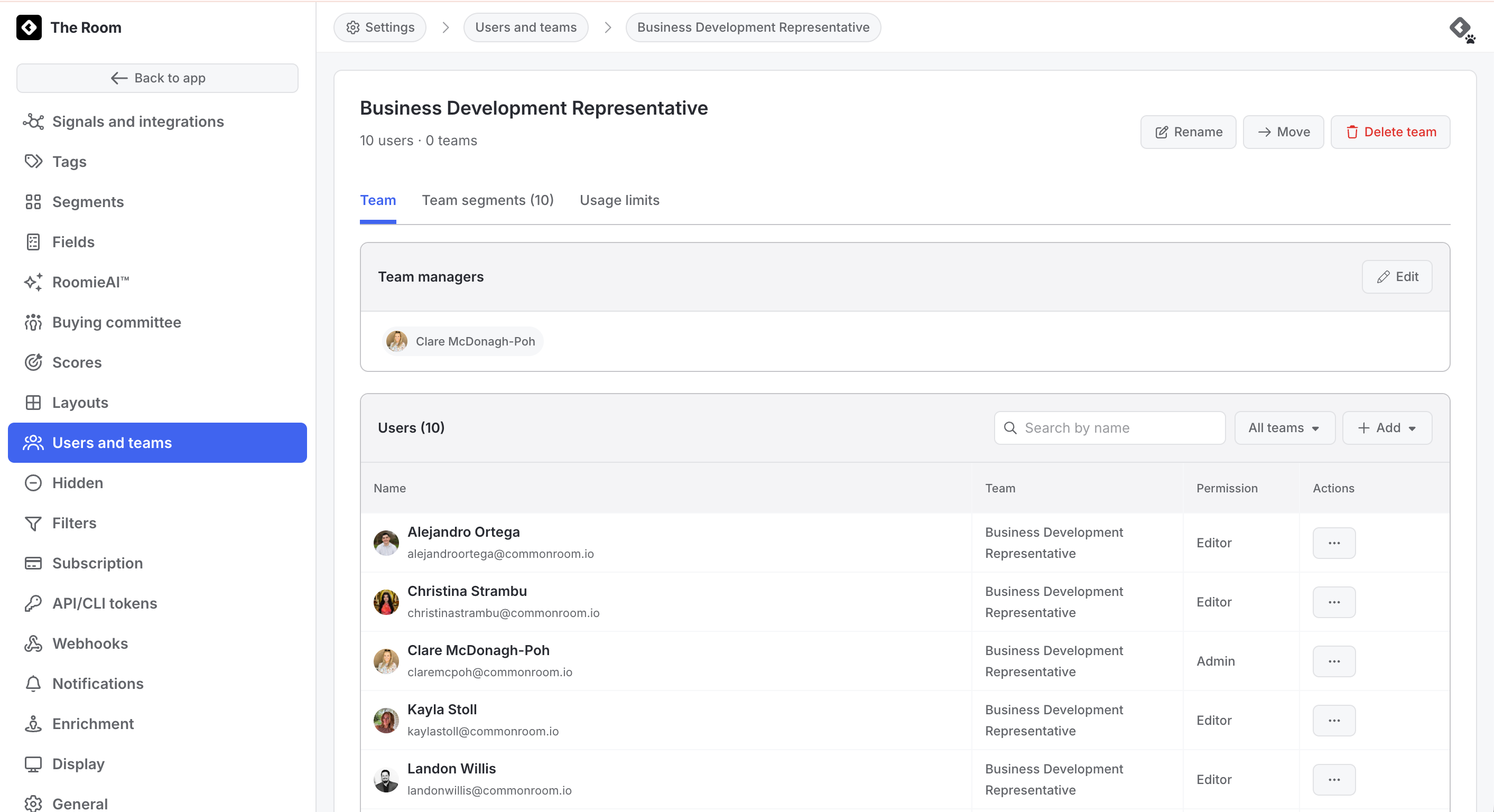
For example, a Sales org team managed by a director can hold an East team and a West team, each with its own manager and reps. The director sees a rolled-up view across both sub-teams.
Bulk setup by CSV isn't available yet. It's planned and coming soon.
What teams unlock
Once teams exist, you can use them anywhere Common Room supports assignment, filtering, or reporting.
| Surface | Behavior |
|---|---|
Segment assignee filter | Managers can filter a segment to their team's assigned contacts. The filter defaults to My Team for managers, and you can clear it. |
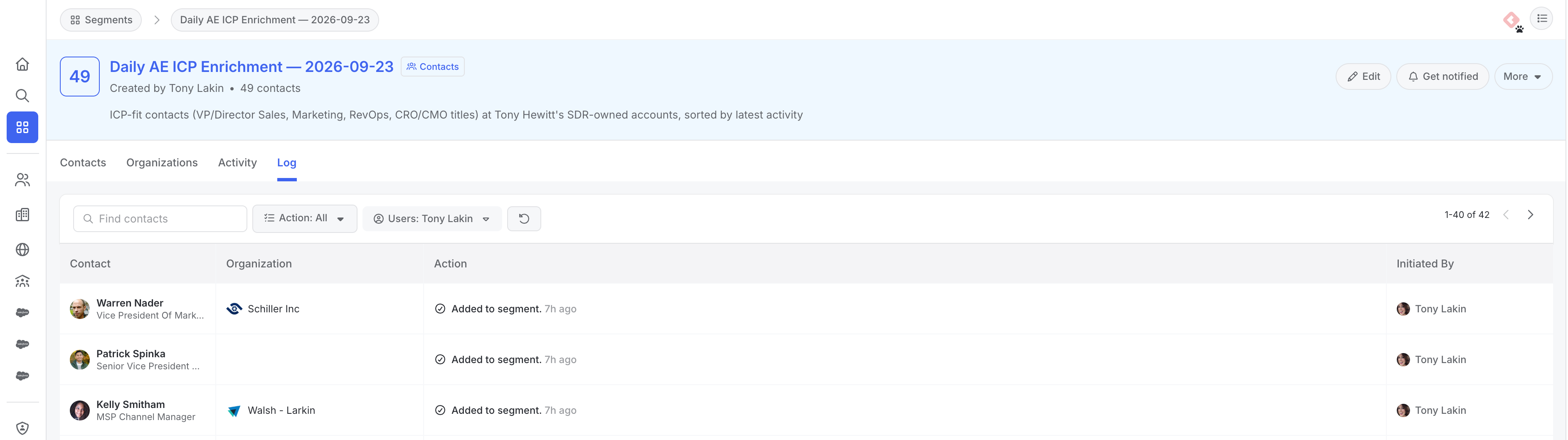
Action logs | Filter the user filter by team to see only your team's actions. |
Reporting | Powers the team and rep breakdowns in the Manager Reporting Dashboard, and adds team filters to Reporting. |
Nested teams | Sub-teams roll up. A manager over several sub-teams sees the combined view, not just direct reports. |

Managers are a reporting construct, not a permission level. Assigning someone as a manager doesn't change what they can edit or access elsewhere in Common Room.
Manager Reporting Dashboard
The dashboard lives on the home page and is scoped automatically to the teams a manager owns, including any nested sub-teams. It works alongside your existing reports and segment views, and is the fastest way into the filtered views a manager already has.
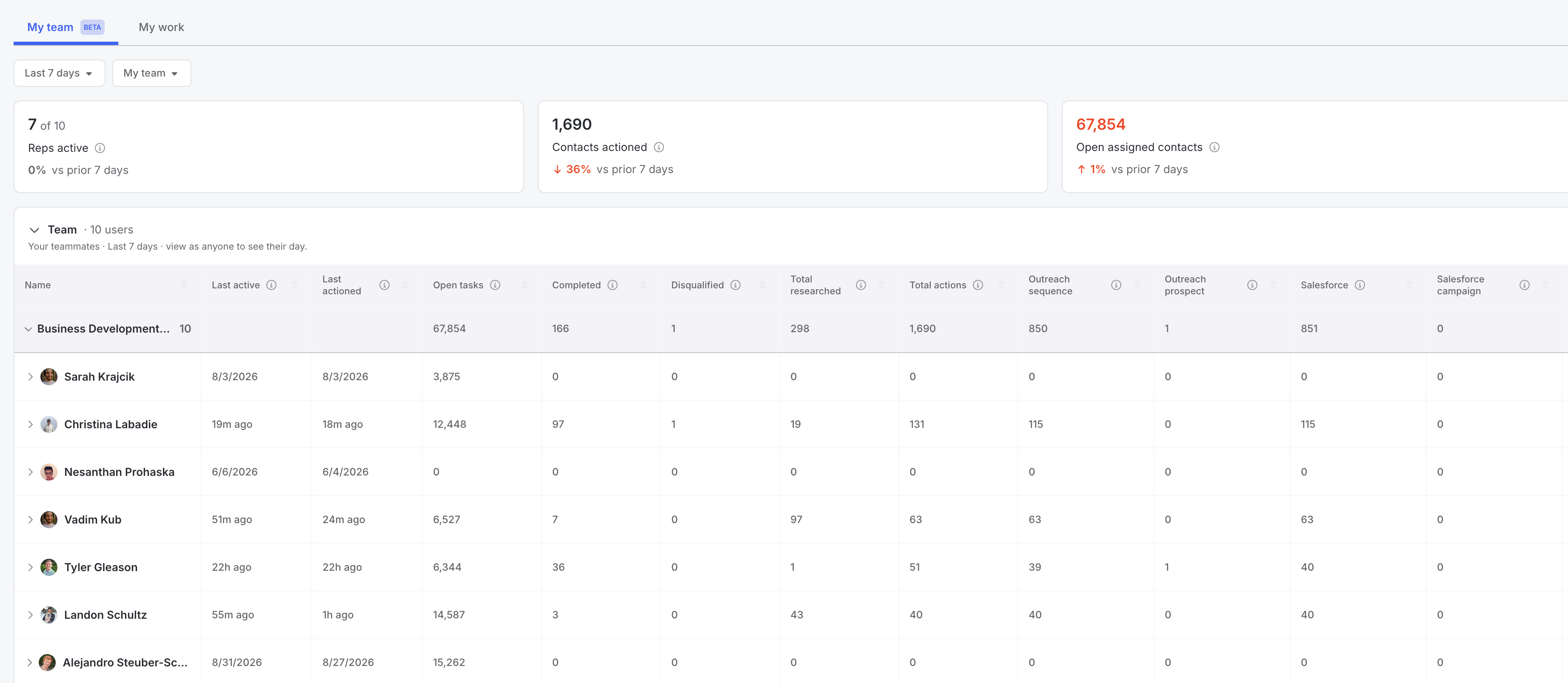
What's on the dashboard
| Component | What it shows |
|---|---|
Summary tiles | Reps active, contacts actioned, and open assigned contacts, for a quick read on the team. |
By team / by rep | Expandable rows with performance per team, down to each rep. |
By segment | The same data, broken down by contact segment instead of by person. |
Filters | Filter the whole page by team or by user. |
Click-through | Click a metric (for example, actioned or disqualified) to open the list of contacts behind it. |
Example plays
- Weekly team check-in. Open the dashboard, scan the summary tiles and by-rep rows, and flag reps with low action volume for a 1:1.
- Balance workload. Use the by-rep rows to spot a rep assigned far more (or fewer) contacts than teammates, then rebalance.
- Director rollup. Directors with several managers below them see combined performance across sub-teams.
Data accuracy and limits
| Consideration | What it means for you |
|---|---|
Teams required | The dashboard is empty until a manager has a team assigned. Set up teams first. |
Own teams only | Managers see their own team and any sub-teams nested under it, not other managers' teams. |
Frequently asked questions
Can a rep belong to more than one team?
No. Each rep belongs to exactly one team.
How deep can team nesting go?
Three levels: parent team, sub-team, and sub-sub-team. Deeper structures aren't supported.
Does being a manager change what someone can see or edit outside of reporting?
No. Managers are a reporting construct only. Segment editing rights, layout access, and other permissions don't change.
Can I bulk-import my org's team and manager structure?
Not yet. CSV bulk setup is coming soon. In the meantime, contact your Common Room account team for help setting up a large org.
Can a manager see another manager's team?
Only if that team is nested under theirs, for example a director over several managers. Otherwise, managers see only their own team.
Why is my Manager Reporting Dashboard empty?
The dashboard needs a team assigned to you as manager. Ask an admin to check Settings > Users and Teams and confirm you're set as the manager of at least one team with members.