
Microsoft Entra ID - SCIM Setup Guide
Last updated Oct 29th, 2026
Overview
Set up automatic user provisioning from Microsoft Entra ID to Common Room. Once configured, assigning a user to the Common Room application in Entra creates them in Common Room with the role you chose, and un-assigning them removes their access.
Availability
SCIM is included on Team and Enterprise plans.
Before you start
- SAML SSO for Common Room is already configured. Provisioning is set up on the same Entra enterprise application. If SSO isn't in place yet, do that first.
Step 1 — Create a Common Room API token
In Common Room, go to Settings → API tokens and create a token.
Copy the token somewhere safe: it's shown only once, and you'll paste it into Entra in step 3.
Step 2 — Define the Common Room roles on your app
Entra sends us a role for each user, and that role must be one of the exact values Common Room recognizes. You declare the available roles as app roles, so they appear as options when you assign someone to the application.
App roles are defined on the App registration, not the Enterprise application. These are two views of the same app, and the portal keeps them apart: you define the roles under App registrations here, then assign them to people under Enterprise applications in step 6.
Go to Entra ID → App registrations → All applications, select your Common Room app, then under Manage select App roles → Create app role. Create three roles:
| Display name | Allowed member types | Value | Description |
|---|---|---|---|
Admin | Users/Groups | owner | Full admin access to Common Room |
Editor | Users/Groups | manager | Can edit in Common Room |
Viewer | Users/Groups | viewer | Read-only access to Common Room |
Leave Do you want to enable this app role? checked and select Apply for each.
Make sure the Display name and Value match the table above exactly.
Step 3 — Connect provisioning
Go to Enterprise applications → your Common Room app → Provisioning → Get started, set Provisioning Mode to Automatic, and fill in Admin Credentials:
| Field | Value |
|---|---|
Tenant URL | https://api.commonroom.io/scim/v2 |
Secret Token | The API token from step 1 |
Click Test Connection. It must succeed before you can save.
Step 4 — Map the role attribute
Go to Provisioning → Mappings → Provision Microsoft Entra ID Users.
The mapping targets the standard roles attribute, and Entra won't save an expression against it while it's a complex type. So do this first: tick Show advanced options at the bottom of the page, click Edit attribute list for customappsso, find roles in the list, set its Type to String, and save.
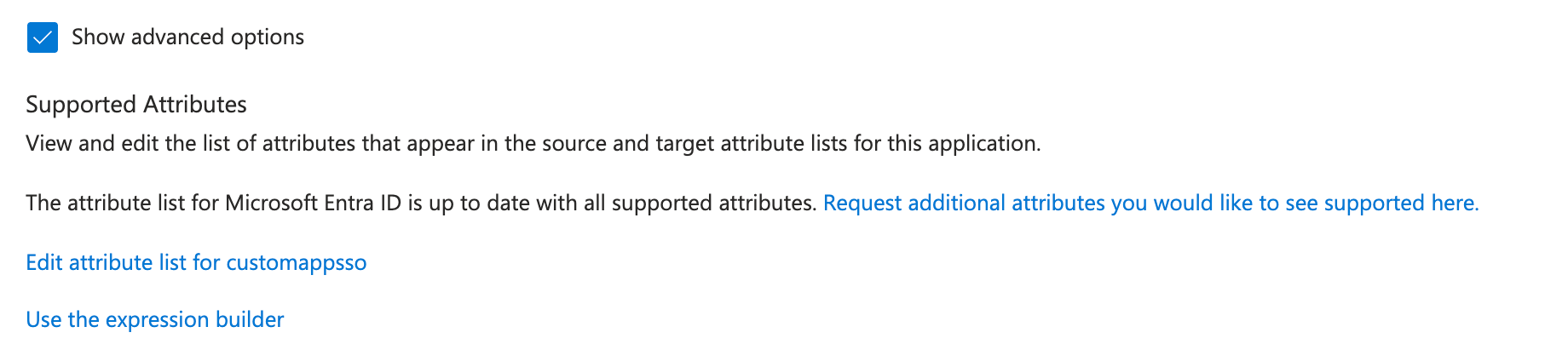
Then, back on the Attribute Mapping blade, click Add New Mapping, configure it as below, and save:
| Field | Value |
|---|---|
Mapping type | Expression |
Expression | SingleAppRoleAssignment([appRoleAssignments]) |
Default value (if null) | Leave empty |
Target attribute | roles[primary eq "True"].value |
Apply this mapping | Always |
Match objects using this attribute | No |
Step 5 — Check the userName mapping
Still in the attribute mappings, confirm userName maps to the user's email address — user.mail, or user.userprincipalname if your UPNs are email addresses.
Common Room identifies users by email, so userName must be a valid email address.
Step 6 — Assign users and set scope
- Under Provisioning → Settings, set Scope to Sync only assigned users and groups. The role expression in step 4 does not work reliably with "Sync all users and groups".
- Go to Users and groups → Add user/group, pick the users or groups, and — importantly — select a role for each assignment. That role is what becomes their Common Room access.
The Select a role list includes a fourth entry called User alongside your Admin / Editor / Viewer roles. That one is Entra's built-in default access role and carries no value; always pick one of the three roles you created in step 2.
Assign exactly one role per user. Common Room applies a single role, so a user with multiple app role assignments may not get the one you expect.
Then set Provisioning Status to On and save.
Step 7 — Verify
Use Provision on demand rather than waiting for the sync cycle:
- Provisioning → Provision on demand.
- Pick a test user and run it.
- Expand the result to see the exact request Entra sent. Confirm the payload contains a roles array carrying the role's display name, e.g. "roles": [{ "value": "Admin", "primary": "True" }].
- In Common Room, check the user appears under Settings → Team with the expected role.
Assign user teams with groups (optional)
Common Room also has user teams (Settings → Users and teams → Teams) for grouping teammates — for example by team or function.
You can drive these from Entra groups: members of a synced group receive the Common Room team whose name matches the group's name, and lose it when removed from the group.
- Create or use an existing team in Common Room first.
- Go to Settings → Users and teams → Teams and create the team. A group only syncs to a team that already exists.
- Enable group provisioning.
- In your Entra application, go to Provisioning → Mappings → Provision Microsoft Entra ID Groups, set Enabled to Yes, and save. Leave the default attribute mappings as they are.
- Create the group.
- In Entra ID → Groups, create a security group named exactly after the Common Room team (e.g. Field Rep) and add its members.
- Assign the group to the application.
- Under Users and groups → Add user/group, pick the group and — just as for individual users in step 6 — select a role. Every member of the group is provisioned with that access role.
- Provision.
- Use Provisioning → Provision on demand to test right away (you can select the group and up to five of its members), or wait for the regular sync cycle.
- Verify.
- In Common Room, the group's members appear under the team at Settings → Users and teams → Teams, carrying the access role from step 4 under Settings → Team.
Keep each user in at most one synced group. Common Room applies a single user role per teammate, so a user in several synced groups may not end up with the role you expect.
Members are matched by email and must exist as provisioned users before a team can apply — assigning the group with an access role (step 4) handles that automatically. If you rename a group in Entra, create a Common Room team with the new name before the next sync.
Using dynamic groups
Instead of managing group members by hand, you can let Entra assign them with dynamic membership rules — for example, everyone in a given department. Dynamic membership groups require a Microsoft Entra ID P1 license.
- Go to Entra ID → Groups → All groups → New group and name the group after the Common Room team.
- Set Membership type to Dynamic User, then select Add dynamic query.
- Build the rule — e.g. property department, operator Equals, value Marketing, which produces the rule (user.department -eq "Marketing"). The Validate Rules tab lets you check the rule against specific users before saving.
- Save the rule, then Create the group. Membership populates automatically; members can't be added or removed manually on dynamic groups.
- Assign the group to the application with an access role, exactly as in step 4 above.
From then on it's hands-off: when a user's attributes change (say, their department is updated), Entra re-evaluates the rule, and the next provisioning cycle updates Common Room — both the user team and the access role follow automatically.